
Share notes and checklists online with a link: snapshot or live
Any note in Smart Notes and any checklist in RytePad can be shared with a link. Send a snapshot as it is now, or a live link that always shows the latest version. The person who opens it needs no account and cannot change anything, and you can stop sharing a link at any time.
In short
- Two kinds of link: a snapshot (the note or checklist as it is when you share it) and a live link (always the latest version).
- Notes and checklists are shared the same way, from the same popup.
- The reader opens the link in any browser, on a phone or a computer. No account is needed, and the page is read-only.
- Sharing is on every plan, free and Pro.
- The share popup lists every link, each with Copy link and Stop sharing. While a link is out, the share icon is tinted.
- Stop sharing takes a link down for good: it then shows "not found".
- Shared pages ask search engines not to list them, and their addresses cannot be guessed.
- A note or a checklist can also remind you of itself: the bell in its top bar sets a reminder.
Snapshot or live: which link to send
| Snapshot link | Live link | |
|---|---|---|
| What it shows | The note or checklist as it was when you made the link | The latest saved version |
| After you change it | Stays as it was | Shows the change the next time the page is opened or reloaded |
| How many | A new snapshot each time it has changed | One per note or checklist |
| Dates on the page | When the snapshot was made | When it was created and last updated, with a green Live label |
| The address | rytepad.com/app/shared/… | rytepad.com/app/shared/live/… |
| Good for | Something finished: a recipe, minutes as agreed, a packing list as it was packed | Something that keeps changing: a trip plan, a shopping list for the house, notes for a group |
Making a snapshot again: if nothing has changed since the last snapshot, you get the same link back. Once you have changed the note or checklist, Share a snapshot makes a new link, and the older snapshot keeps showing the older version until you stop it. For a checklist, ticking an item off or starring one counts as a change.
Asking for a live link again gives the same link, so you can copy it whenever you need it.
How to share a note or a checklist
- Open the note in Smart Notes, or the checklist in Checklists (on a phone, Notes or Lists in the bar at the bottom).
- Press the share icon in its top bar, next to the bell. Share at the foot does the same: under a note beside Save and Delete, under a checklist before Delete checklist.
- The popup "Share this note" or "Share this checklist" opens, with its name. Press Share a snapshot or Share a live link.
- The link appears in the popup with its kind. Press Copy link (it says "Copied" for a moment) and paste it into a message, an email or a chat.

A checklist's popup is the same, in the checklist's colour.

If your browser cannot copy by itself, RytePad selects the link so you can copy it yourself. The popup closes with its ×, with Esc, or with a press outside it.
What the person who opens the link sees
A shared note
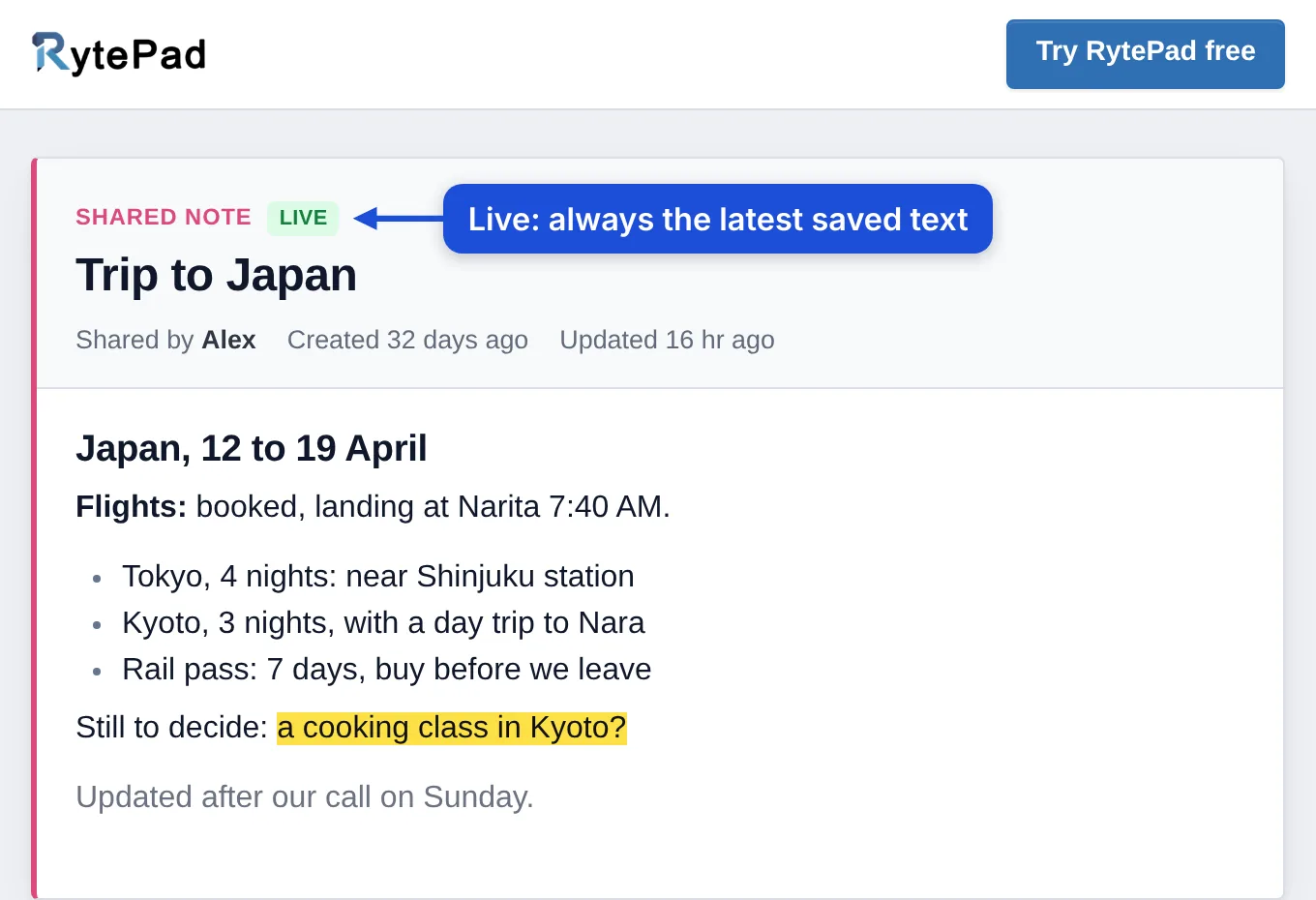
- The note's title and text, with its formatting: headings, bold, italic, underline, lists, coloured text and highlights.
- Shared by and your first name. Your email address is not on the page.
- For a snapshot, when it was made. For a live link, the green Live label and when the note was created and last updated.
- Links in the note, and web addresses written in it, can be clicked. They open in a new tab.
- Printing the page prints the note alone.

A shared checklist

- The checklist's title, Shared by with your first name, and the dates: for a snapshot when it was made, for a live link when the checklist was created and last updated, with the green Live label.
- To do and Completed, each with its count, in the order you see them in the app. If you chose Oldest first for your checklists, To do is in that order too.
- A starred item shows its star. A completed item has its green tick.
- When every item is ticked off, To do says "Everything is checked off."
- The reader cannot tick, add or change anything.

Both pages work on phones as well as computers, with a short invitation to try RytePad at the top and at the bottom. The reader cannot see your other notes or checklists. An open page does not change by itself: to see your latest changes on a live link, the reader reloads it.
Your links: copy, check and stop
Press the share icon (or Share) to see every link a note or checklist has, newest first. The popup says how many there are ("This note has 2 links") and what each one shows, for example "Live link: always the latest saved text" or "Snapshot link: the checklist as it was on 14 Nov 2026".
- Copy link copies that link again, at any time.
- Stop sharing asks first: "Stop sharing this link? Anyone who opens it will see “not found”, and that cannot be undone." Press Stop sharing to confirm, or Keep it. A message confirms it: "Sharing stopped. The link no longer works."

- While a note or checklist has a link out, its share icon is tinted; its tip reads "Shared. Press to see its links or share it again".
- After you stop a live link, Share a live link makes a new one with a new address. The old address stays "not found".
- Deleting a note or checklist takes every link of it down. Bringing it back from Recently Deleted does not bring the links back: share it again.
- Renaming: a live link shows the new title, a snapshot keeps the old one.
- Links do not expire. A link works until you stop sharing it or delete the note or checklist.
Privacy and safety
- Anyone who has the link can open it, and they can pass the link on. Send it only to the people it is for, and keep passwords, door codes and bank details out of anything you share.
- Shared pages are marked noindex, which asks search engines not to list them. Each link's address ends in a long random code, so it cannot be guessed.
- Your notes and checklists are stored encrypted, and so is a snapshot.
- RytePad does not show you who opened a link or how often.
- Section Lock keeps a section closed in the app until you enter your PIN, but links you have already shared keep working. To take a note or checklist off the web, stop sharing it.
Smart Notes and checklists: what else they do
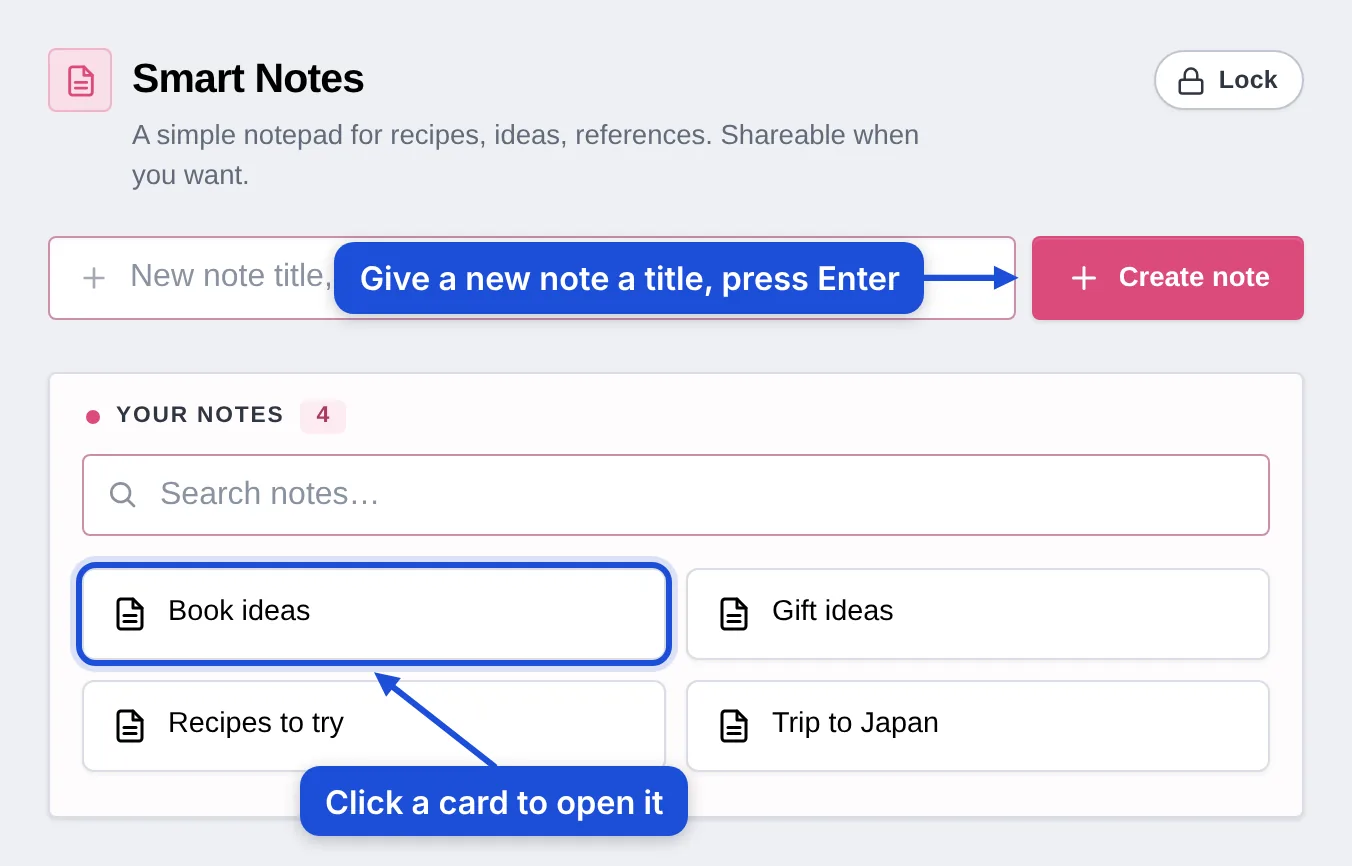
- The top bar of an open note or checklist holds the star, the bell, the share icon and the × that closes it. Its title sits under the bar, with Rename.
- The star marks a note or checklist that matters. A starred one shows its star on its card.
- A note has a title of up to 40 characters (two notes cannot share a title, and ";" cannot be used) and up to 40,000 characters of text, with a counter of characters and words under the editor.
- Formatting: bold, italic, underline, strikethrough, a heading, left, centre and right alignment, numbered and bulleted lists, grey, red, blue and green text, a yellow highlight, links, and clear formatting, with Undo, Redo and a spell check.
- Saving: a note saves itself every 10 seconds while you type, and when you leave the editor, open another note or close the tab. Save (or Ctrl+S) saves at once.
- A checklist has its items in To do and Completed, each with a count. Tick an item with its circle; star, edit or delete it from its row. Newest first or Oldest first sets the order of the items, and Rearrange puts them in your own.
- Restore all in the Completed header puts every ticked item back in To do, after a question, so a checklist you use again and again (a packing list, a weekly shop) starts fresh in one go.
- Dates: a note and a checklist each show when they were created and last updated.
- Deleting: the message after a delete has Undo, and what you delete waits in Account → Recently Deleted for 1 hour (48 hours on Pro).
- Export: Account → Your data → Export my data gives your notes and checklists, with the rest of your data, in one zip.

| Shortcut (⌘ instead of Ctrl on a Mac) | Does |
|---|---|
| Ctrl+B, Ctrl+I, Ctrl+U | Bold, italic, underline |
| Ctrl+Shift+X | Strikethrough |
| Ctrl+K | Add a link |
| Ctrl+S | Save the note |
| Ctrl+Z, Ctrl+Y | Undo, redo |
Reminders on a note or a checklist

The bell in the top bar of an open note or checklist sets a reminder about the whole of it. Its tip reads "Remind me about this note" or "Remind me about this checklist".
- Once: on a date, at a time.
- Every few days: every 1 to 90 days, counted from the day you set it.
- Weekly: on a weekday, at a time. A new reminder starts as Weekly on today's weekday at 9:00 AM.
- Monthly: on a day of the month. The 31st falls on the last day of a shorter month.
The line under the choices says when it will come, for example "every Saturday at 9:00 AM, next time Sat, 21 Nov". Choose Notification, Email, or both, and press Save reminder.
- A note's notification is titled Note reminder, a checklist's Checklist reminder. A tap on it opens the note or checklist.
- A repeating reminder goes on until you remove it. If the note or checklist is deleted, nothing arrives.
- All your reminders are listed under Account → Notifications → Your reminders. More in Notifications and reminders.
Examples
A family recipe: send a snapshot
Write "Lemon cake" as a note with the ingredients as a bulleted list and the steps as a numbered list. Press the share icon, then Share a snapshot, and paste the link into the family chat. Everyone sees the recipe as it is today. If you improve it later, share a new snapshot. The first link keeps the first version until you stop it.
A trip plan: send a live link
Keep "Trip to Japan" as one note: dates, flights, where you stay, and what is still to decide, with a highlight on the open questions. Send the live link to the people coming along. Each time you update the plan, they reload the page and see it, with "Updated" telling them how recent it is.
A packing list for the family: a live checklist
Make a checklist "Packing for Goa" and star the things nobody may forget, like the passports. Send its live link to the family. As you tick items off, they reload the page and see what is still in To do. After the trip, Restore all puts every item back, ready for the next one.
A shopping list for the house: one live link that stays
Share the live link of "Groceries" once with the people you live with. Add what runs out during the week, tick items off in the shop, and press Restore all the next week to start again. The link stays the same, so nobody needs a new one.
Meeting notes: a snapshot once it is agreed
Write the notes during the meeting. When everyone agrees, share a snapshot: it stays exactly as agreed, even if you go on editing your own note. Anyone can print it, and the print shows only the note.
A weekly review: a note that reminds you
Keep a note called "Weekly review". Press its bell, choose Weekly, Sunday and 7:00 PM, and save. Every Sunday evening a "Note reminder" arrives, and a tap opens the note.
Free and Pro
| Free | Pro | |
|---|---|---|
| Share a snapshot or a live link (notes and checklists) | Yes | Yes |
| Notes | 10 | Unlimited |
| Checklists | 10, with up to 25 items each | Unlimited |
| Text per note | 40,000 characters | 40,000 characters |
| Reminders (of every kind together) | 5 at a time | Unlimited |
| Section Lock on Smart Notes or Checklists | No (the free plan locks Daily Tasks) | Yes |
| Bring back something you deleted | 1 hour | 48 hours |
Questions and answers
Can the person I share with change anything?
No. A shared note or checklist is read-only: the reader cannot edit the note or tick an item. Only you can change it, in RytePad.
Does the reader need a RytePad account?
No. The link opens in any browser, without signing in.
Does a live link update by itself?
It shows the latest version whenever the page is opened or reloaded. A page that is already open does not change on its own.
How do I stop sharing?
Open the note or checklist, press its share icon, and press Stop sharing on the link. Anyone who opens it then sees "not found". Deleting the note or checklist takes all its links down at once.
Do shared links expire?
No. A link works until you stop sharing it or delete what it shows.
Can Google find what I share?
Shared pages ask search engines not to list them, and the address cannot be guessed. But anyone who has the link can open it and pass it on, so share it only with the people it is for.
Does a shared checklist show the items I ticked off?
Yes. It shows To do and Completed, as in the app, with the stars of starred items. A snapshot shows them as they were when you shared it.
Can I share a note with pictures?
A note holds text with formatting: headings, lists, colours, highlights and links. Pictures and files are not part of a note.
Is sharing free?
Yes. Both kinds of link, for notes and for checklists, are on every plan.
Can I see who opened my link?
No. RytePad does not show who opened a shared page or how often.
How many links can one note or checklist have?
One live link, and a snapshot for each version you share.
Can I share a diary entry or my tasks?
No. Sharing by link is for Smart Notes and Checklists. Your diary stays private.
Try it in RytePad
Tasks, a private diary, goals, checklists and notes in one place. No card needed.