
Notifications and reminders in RytePad: how they work
RytePad can tell you about your day in two ways: a notification on your phone or computer, and an email. You choose which, for each kind of message. This page explains every part: turning notifications on, the two daily task reminders, and the reminders you set yourself on a task, a goal, a checklist, a note or your diary.
In short
- Notifications work on phones and computers, on the free plan and on Pro.
- You turn them on for each device under Account → Notifications.
- Two daily reminders come by themselves: tasks for today in the morning and tasks still open in the evening, at times you choose (6:30 AM and 6:30 PM until you change them).
- You can set your own reminder on a task, a repeating task, a goal, a checklist, a note, and one to write in your diary.
- Every reminder can come as a notification, as an email, or as both.
- The free plan holds 5 reminders of your own at a time. Pro has no limit.
Turn notifications on
Notifications are turned on one device at a time, because each browser has to give its own permission.
- Open RytePad on the device and open Account (your name or avatar).
- Open the Notifications tab.
- Under This device, press Turn on. Your browser asks for permission: allow it.
- The line now reads On, in green, with three buttons: Send a test, Pause and Turn off.


Send a test sends a notification that reads "Test notification: This is a test. Notifications work on this device." It should show within a few seconds.
Once a device is on, reminders reach it even when RytePad is closed.
On an iPhone or iPad
Safari gives notifications only to web apps that are on the Home Screen. Add RytePad to your Home Screen first (Share → Add to Home Screen), open it from there, and then turn notifications on. This needs iOS 16.4 or later. Opened in Safari itself, the tab says that notifications are not available in this browser.
Your other devices

Every device you turned on is listed under "This device" with its name (for example "Chrome on Windows") and the date it was turned on. Each one says On in green, or Paused, and has Pause (or Resume) and Remove. Remove asks first, then takes that device off the list. To get notifications there again, open RytePad on that device and turn them on.
Pause a device
Pause stops the notifications to one device without turning them off there, and it works from any of your devices: pause the computer from your phone, or the phone from your computer. The device then reads Paused, and a message says "Paused. That device gets no notifications until you resume it." Resume turns them back on: "Resumed. That device gets notifications again."
- Reminders you also get by email still arrive while a device is paused.
- If every device is paused, the reminder window says so when you set a notification (see below).
If it says "Blocked" or "Not available"
- Blocked: notifications were refused for RytePad in this browser. Allow them in the browser's site settings, then reload the page.
- Not available: this browser cannot show notifications (for example Safari on an iPhone outside the Home Screen). Your other devices still work, and every reminder can still come by email.
When a notification arrives
- On a phone, notifications usually arrive at once.
- On a computer, they appear while the browser is open, or when it is opened again.
- A notification that could not be delivered within 2 hours is not shown late. An old reminder would only confuse.
- A reminder arrives within about a minute of the time you set.
The two daily reminders
These come by themselves. You find them under Account → Notifications → What to send, each with a box for Notification and a box for Email.

| Message | When | What it says |
|---|---|---|
| Morning: tasks for today | At 6:30 AM your time (or the time you choose), if you have tasks for the day. | "Tasks for today", then for example "4 tasks for today: Call the bank, Pay the rent, Buy milk, and 1 more". Up to three tasks are named, in the order of your list. The email lists them. |
| Evening: tasks still open | At 6:30 PM your time (or the time you choose), if tasks are still not done. | "Still open today", then for example "2 tasks still open: Call the bank, Buy milk". The email lists them. |
- No tasks, no message. With nothing planned for the day, or everything done by the evening, nothing is sent.
- Your own time. Each sentence holds a small list with a time. The morning reminder can be set to any half hour from 4:00 AM to 12:00 PM, the evening one from 12:30 PM to 11:30 PM. The choice is saved as you make it, for your account only, and it is used for the notification and for the email.
- Your time zone. Times are your own local time. RytePad takes the time zone from your browser.
- A changed time counts from the next morning or evening if that day's reminder has already arrived.
- A device turned on while a reminder is due starts with the next one. Nothing arrives right after turning on.
Task names in the daily notifications
Under the rows is the box Show task names in the morning and evening notifications.
- On: "3 tasks for today: Call the bank, Pay the rent, Buy milk".
- Off: only how many, "You have 3 tasks for today." or "3 tasks are still open today."
It is on by itself, unless Daily Tasks is behind a PIN (Section Lock). Then the notifications give only the count until you tick the box yourself.
The other rows of "What to send"
- Diary: keep your streak (notification and email): if you wrote in your diary 3 or more days in a row and then missed 2 days, one message on the third day, at 8:00 PM your time. It reads "Your diary streak: You wrote 3 days in a row. Pick it up again today?" It is sent once for a streak, and not at all if you set your own diary reminder.
- Inactivity reminders (email): a gentle note after 7 days away and after 30 days away.
- News and offers (email): new features, the refer-a-friend program, offers and discounts.
The Notification column can be used once a device is turned on. The Email column always works.
Reminders of your own
A reminder of your own is set with the bell. It opens the Remind me window, where you choose when it comes and how it is sent.

| On | Where the bell is | When it can come |
|---|---|---|
| A task | Among the task's icons (on a computer they show under the pointer; on a phone, and in a narrow window, always). | On the day at a time, Before (a number of days ahead), or If still open (a number of days after). |
| A repeating task | The bell of any of its days. | Every time this task repeats, at one time of day, on the days it is not done yet. Or for that one day only, like a plain task. |
| A goal (long-term or monthly) | Among the goal's icons. | Once on a date, Every few days (1 to 90), Weekly on a weekday, or Monthly on a day of the month. |
| A checklist | At the top of the opened checklist. | The same four choices as a goal. It is for the whole checklist, not for one item. |
| A note | At the top of the opened note. | The same four choices as a goal. |
| The diary | The Remind me button in the "Entries" header. | Every day at one time (9:00 PM to begin with), on days you have not written an entry yet. |
A reminder on a task
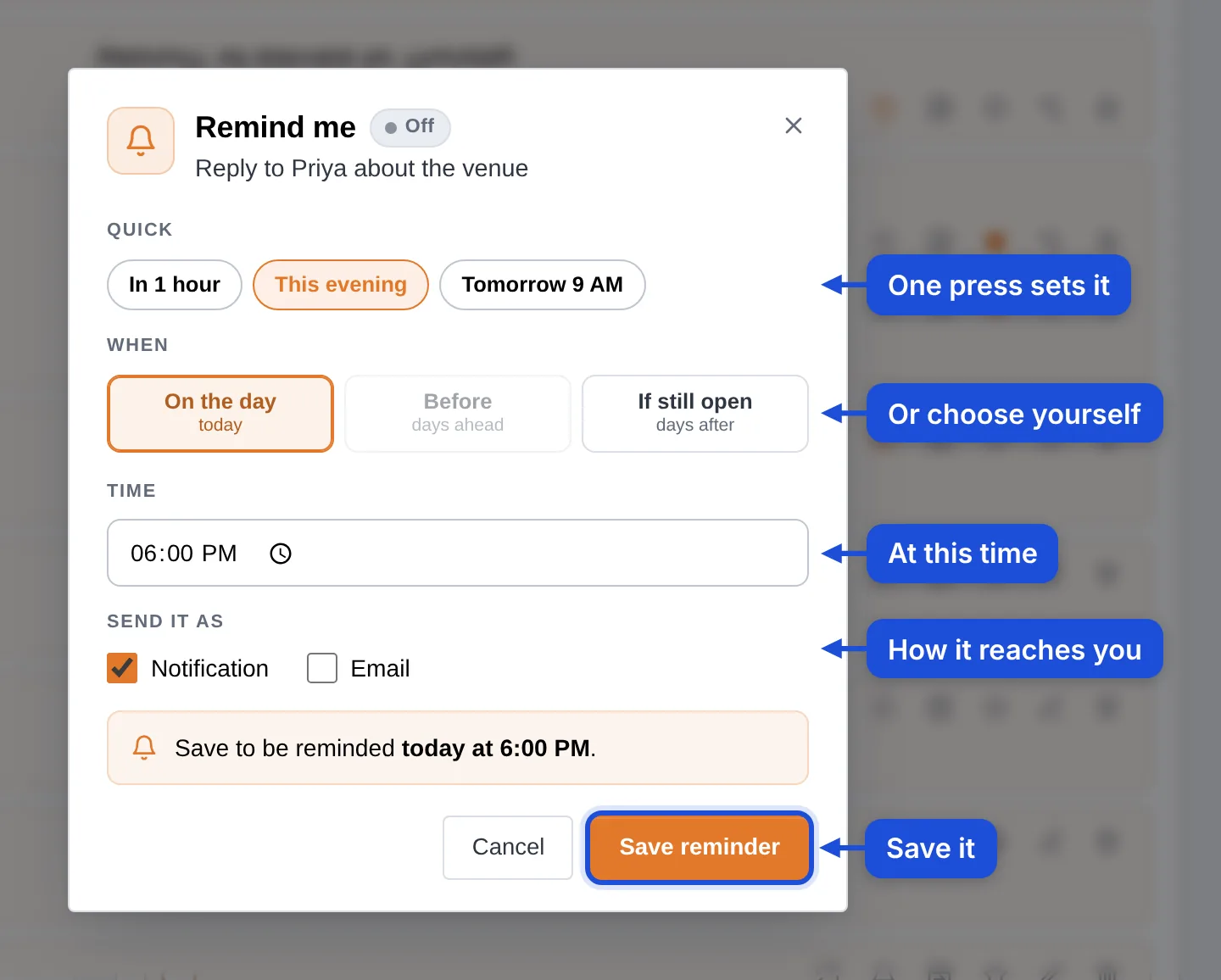
- Press the bell of a task that is not done.
- Use a quick choice, or choose yourself. For a task of today the quick choices are "In 1 hour", "This evening" (6:00 PM, offered until 5:30 PM) and "Tomorrow 9 AM". For a task on a coming day they are "That morning" (9:00 AM) and "The evening before" (6:00 PM).
- Or pick On the day, Before or If still open, and a Time. The line under the choices says in words when it will come, for example "tomorrow at 9:00 AM, if the task is still open then".
- Under Send it as, tick Notification, Email, or both.
- Press Save reminder. A message confirms it, for example "Reminder set for today at 4:30 PM."
- The bell of a task with a reminder is coloured and stays visible. Press it again to see "On", change the reminder (Save changes) or take it away (Remove reminder).

- A time that has already passed cannot be saved: "That time has already passed. Choose a later one."
- When the time comes you get "Task reminder" with the task's text. With Email ticked, an email with the subject "Reminder: (the task)" as well.
- A task marked done before its time sends no reminder.
- After a reminder has arrived, the bell is plain again.
- If you move the task to another day, its reminder goes with it.
A reminder on a repeating task
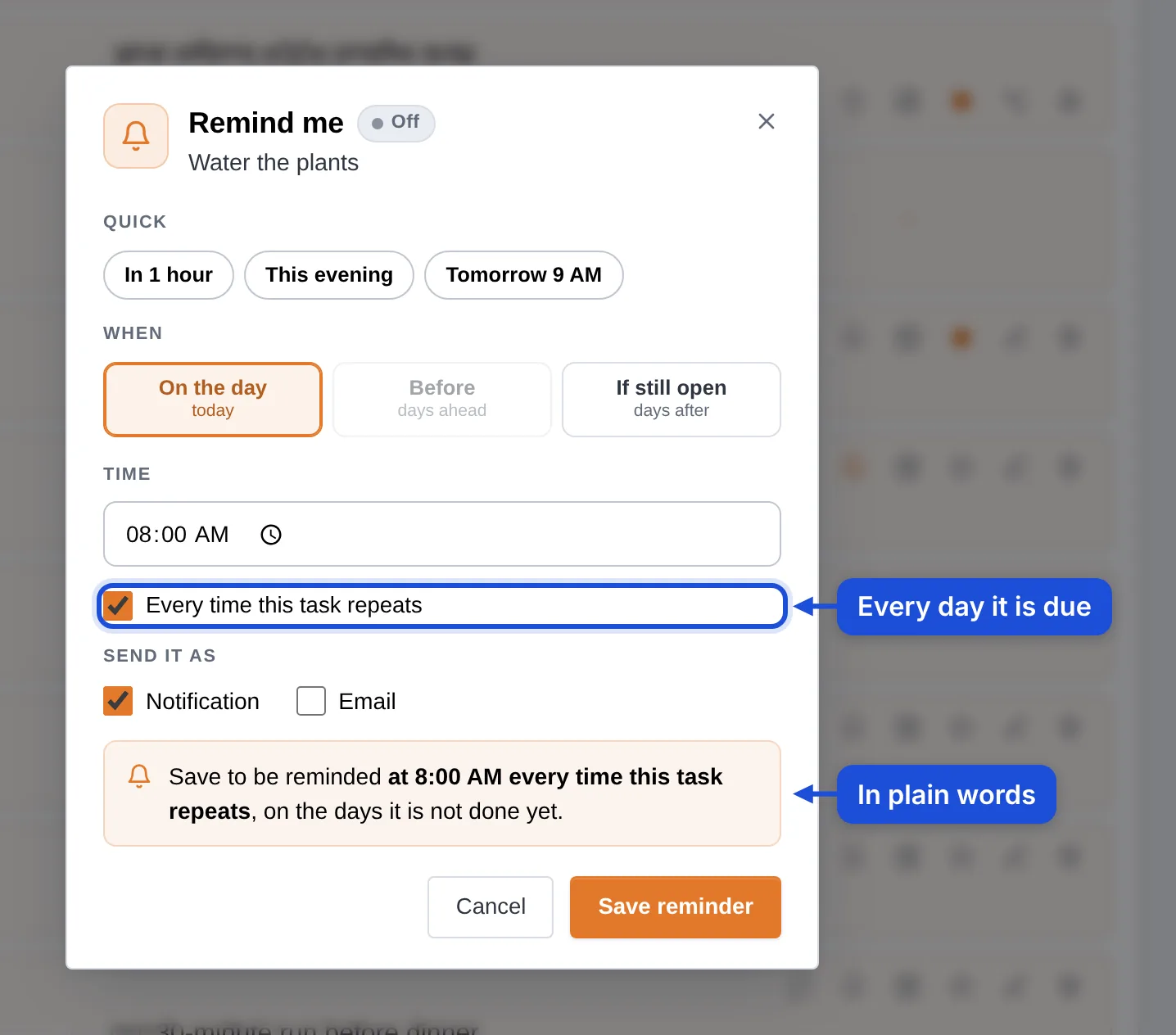
The window has one more box: Every time this task repeats. Tick it and only the time and "Send it as" remain. The reminder then comes at that time on every day the task is due and not done yet, with the title "Repeating task reminder". A day you already ticked off sends nothing. If the time has passed for today when you save, the first reminder is on the next day the task repeats. Leave the box unticked to set a reminder for that one day only. More on repeating tasks.
A reminder on a goal, a checklist or a note

- Once: a date and a time. Afterwards the bell is plain again.
- Every few days: every 1 to 90 days, counted from the day you set it. The first one comes after that many days, not today.
- Weekly: a weekday and a time. If today's time has passed, the first one is next week.
- Monthly: a day of the month and a time. Day 31 comes on the last day of a shorter month.

A repeating reminder goes on until you remove it. On a goal it stops while the goal is marked achieved and comes again if you put the goal back. A goal for one month takes a "Once" date in that month only.
For a checklist the notification names it and says how far you are: "Groceries: 5 of 12 left", "Groceries: all 12 done". For a note it gives the title and the day the note was made: "Trip ideas (created 4 Nov 2026)". If the checklist or note is deleted before the time, nothing arrives.
A reminder to write in your diary


Open the Private Diary and press Remind me in the "Entries" header (on a small phone it is the bell alone). Choose a time and how to send it. It comes "every day at 9:00 PM, on days you have not written an entry yet" (or at the time you choose) and reads "Diary reminder: Time to write today's entry." It never shows what you wrote. Once it is set, the button shows the time.
"Send it as": notification, email, or both
- At least one has to be ticked. With neither, the window says "Choose how to get it: as a notification, by email, or both."
- If no device is getting notifications (none is turned on, or all are paused), the window says so in an amber box. With Email ticked as well, the reminder comes by email only. With Notification alone it says "No device is getting notifications right now, so a notification cannot reach you. Tick Email to get it by email, or turn notifications on (or resume a paused device)." and offers an Open Notifications button.
- The reminder email shows what it is for (for example "Task for today (Thu, 12 Nov)"), the text, when you set it for, and an Open RytePad button.
Tapping a notification
- A task reminder opens Daily Tasks on the task's day, and the task is lit for about two seconds.
- A goal reminder opens Goals with the goal lit. A goal of one month opens on that month.
- A checklist or note reminder opens that checklist or note.
- The diary reminder opens the Private Diary on today.
- The morning and evening notifications open Daily Tasks on today.
- If RytePad is already open, that window comes to the front. No second window opens.
- The button in a reminder email opens the same place.
"Your reminders": all of them in one list

Account → Notifications → Your reminders lists every reminder you have set. Each row starts with its section's icon and shows the text or name, its kind (Task, Repeating task, Goal, Diary, Checklist, Note), when it comes, and "by email" or "notification and email" when it is not a notification alone.
- Change opens the "Remind me" window with what is set.
- Remove asks first ("Remove this reminder? You will not be reminded about it."), then takes it away.
- With none set, the list says "No reminders yet."
Under the list, Sent in the last 30 days opens on the reminders that went out: the newest 20, each with when it was sent and how (notification, by email, or notification and email). An item deleted since shows as deleted, and while a section is locked its words stay hidden. With nothing sent in 30 days, the fold is not there.

With a PIN on a section
If a section is behind a PIN (Section Lock), its reminders keep its content private:


- The "Remind me" window has one more box, ticked: Hide the task text in the notification (for a goal, "Hide the goal text…"; for a checklist, "Hide the checklist's name…"). The notification then reads "Task reminder: Open RytePad to see it." Untick the box to show the text.
- The morning and evening notifications give only the number of tasks, unless you tick "Show task names" yourself.
- While the section is locked, its rows in "Your reminders" read "Hidden while Daily Tasks is locked" and can only be removed.
- A tap on the notification opens the section, which asks for the PIN first and then shows the task.
Examples
| You want | Where | Choose |
|---|---|---|
| A reminder the evening before the dentist | The bell on the task, on the day of the appointment | The evening before (6:00 PM), or Before: 1 day, at the time you like |
| A nudge tomorrow if a task is still not done | The bell on today's task | Tomorrow 9 AM, or If still open: 1 day, at a time |
| A reminder in an hour | The bell on today's task | In 1 hour |
| Vitamins every morning | The bell on a task that repeats every day | Every time this task repeats, 8:00 AM |
| A look at a goal every Sunday | The bell on the goal | Weekly, Sunday, 7:00 PM |
| The grocery list before the weekly shop | The bell on the opened checklist | Weekly, Saturday, 9:00 AM. It says how many items are left. |
| A note to look at once a month | The bell on the opened note | Monthly, day 1, 9:00 AM |
| Write in your diary every evening | Remind me in the Private Diary | 9:30 PM. It comes only on days you have not written yet. |
| The morning summary at 8:00 instead of 6:30 | Account → Notifications → What to send | Morning: tasks for today, 8:00 AM |
| A reminder by email only | "Send it as" in Remind me | Untick Notification, tick Email |
The dentist on Friday at 4 PM
- Add "Dentist, 4 PM" to Friday.
- Press its bell and press The evening before. The line under the choices says when it comes: Thursday at 6:00 PM, the day before it is due.
- Press Save reminder.
A task holds one reminder. To be reminded on the day instead, press That morning (9:00 AM), or choose On the day and a time.
A grocery list that reminds you
Open the checklist "Groceries", press the bell at the top, choose Weekly, Saturday, 9:00 AM, and save. Every Saturday morning the notification says how far the list is, for example "Groceries: 5 of 12 left". A tap opens the list.
Free and Pro
| Free | Pro | |
|---|---|---|
| Notifications on your phone and computer | Yes | Yes |
| Morning and evening reminders, at times you choose | Yes | Yes |
| Reminders of your own (tasks, goals, checklists, notes, the diary) | 5 at a time | Unlimited |
- The count is of reminders that are set now. One that has arrived, or that you removed, makes room for another. The diary reminder counts as one.
- On the free plan the window counts down ("Free plan: 5 of 5 reminders left."). With five in use it says "Free plan: all 5 reminders are in use. Remove one to set another, or see Pro for no limit."
- Account → Your plan shows how many are in use, in the bar "Reminders" (and "Repeating tasks" beside it).

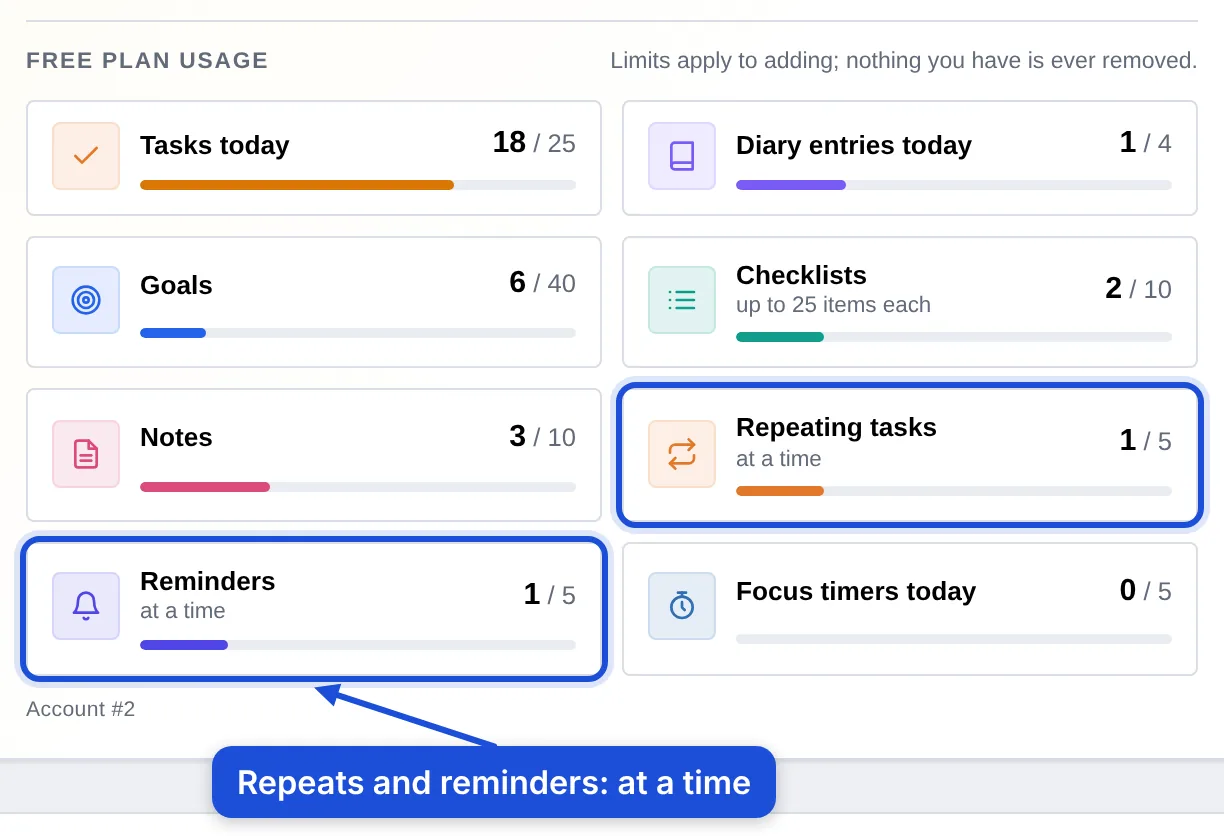
- If Pro ends, reminders you have set keep coming. You can add new ones once fewer than 5 are set.
Questions and answers
Do notifications cost anything?
No. Notifications, the daily reminders and reminders of your own are part of the free plan. Only the number of your own reminders at a time differs: 5 on Free, unlimited on Pro.
I turned notifications on but nothing arrives. What should I check?
- Press Send a test under Account → Notifications. If the test arrives, notifications work on this device.
- Check that the browser, and the phone or computer itself, allow notifications for RytePad (and that Do Not Disturb or a focus mode is off).
- On an iPhone, open RytePad from the Home Screen icon, not from Safari.
- On a computer, a notification shows while the browser is open or when it is opened again. One older than 2 hours is not shown.
- The daily reminders are sent only when there is something to say: tasks for the day in the morning, tasks still open in the evening.
Can I get reminders by email only?
Yes. In "Send it as" tick Email alone. In "What to send" tick only the Email box of a row.
Can other people see my tasks in a notification?
A notification shows what you would see on your lock screen: the task's text, or for the daily reminders up to three task names. To keep the words out, untick "Show task names in the morning and evening notifications", and put the section behind a PIN so its reminders say "Open RytePad to see it."
Which time zone do the times use?
Your own. RytePad takes the time zone from your browser, and all times on this page are your local time.
Why did a reminder not come?
The usual reasons: the task was marked done before its time, the reminder was removed, the item was deleted, or the device was off for more than 2 hours. With Email ticked as well, the email still arrives.
How do I stop the emails?
Untick the Email box of that row under Account → Notifications → What to send, or use the Unsubscribe link at the foot of the email. A reminder of your own is changed or removed in "Your reminders".
Are my reminders part of my data export?
Yes. Account → Your data → Export my data includes a file with your reminders: what each is for, when it comes and how it is sent.
Try it in RytePad
Tasks, a private diary, goals, checklists and notes in one place. No card needed.