
Each day in RytePad has its own list. Write today's, plan tomorrow's, look back at last week's, and on Pro let unfinished tasks follow you to the next day.
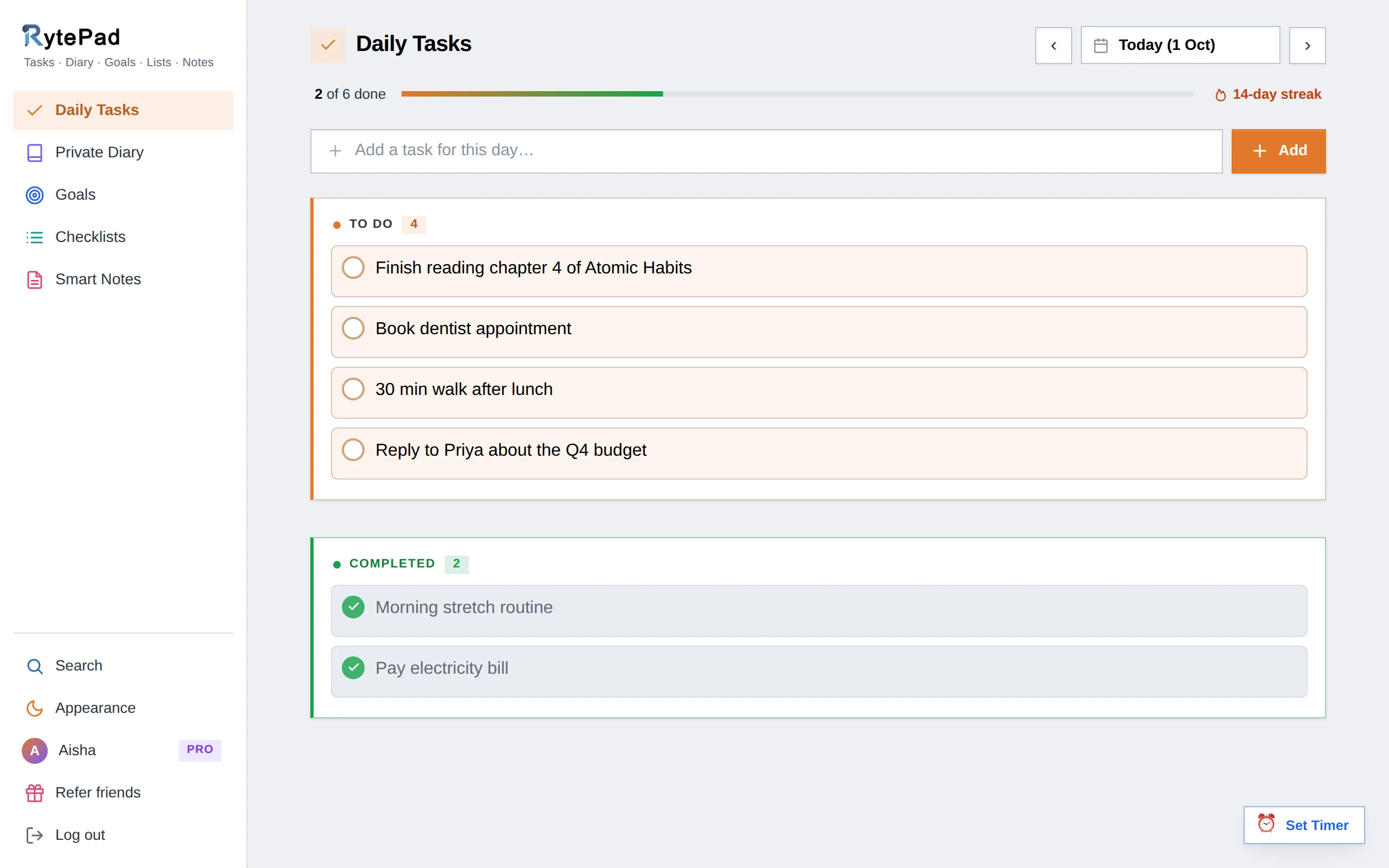
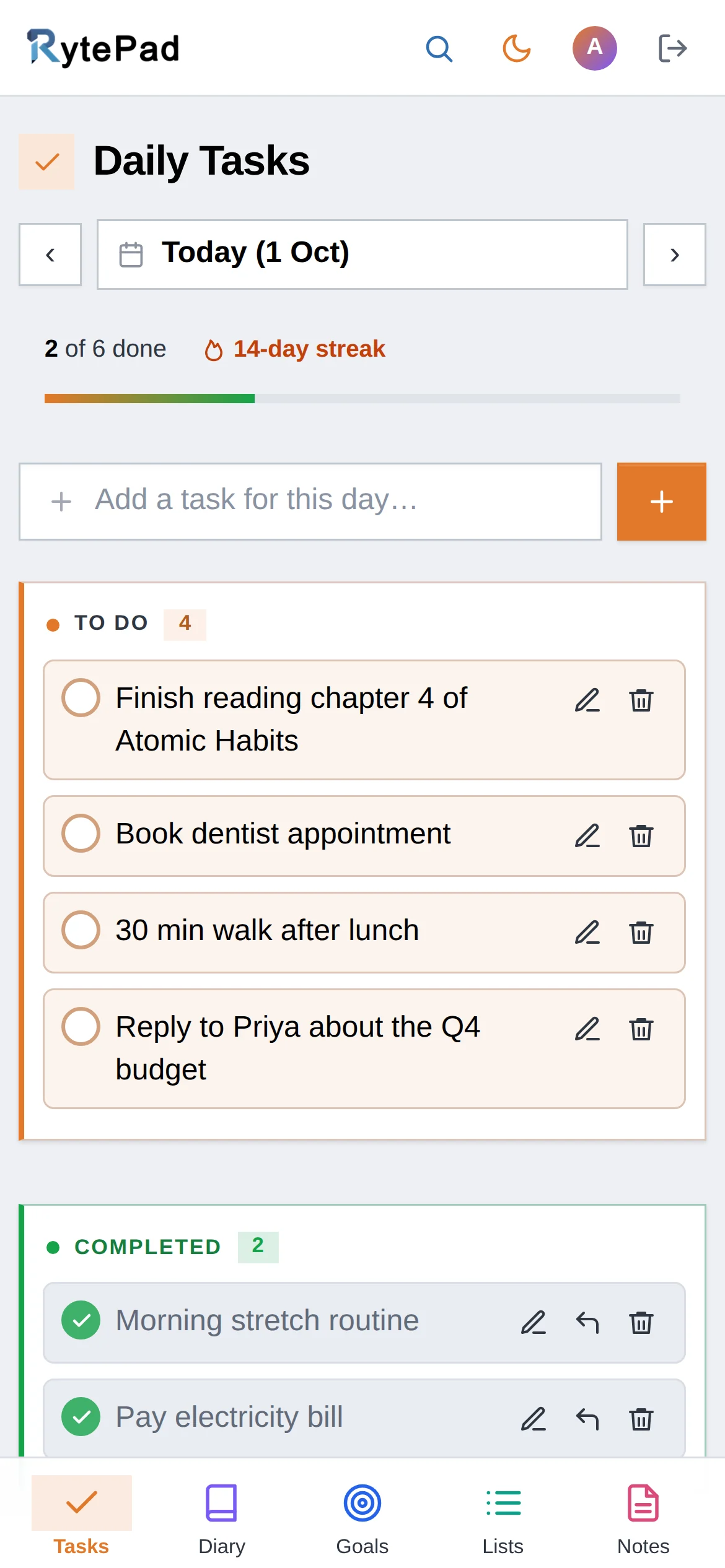
Most to-do apps keep one long list that only ever grows. RytePad's daily tasks are tied to dates instead: a list for Monday, a list for Tuesday, a list for the 14th of next month. You decide what belongs to each day, and each day starts with a clear picture of what matters.
Everything you'd expect is there: add, complete, edit, restore and delete, a star for the tasks that matter most, a Rearrange mode for your own order, a progress line and a streak to keep you going. Email reminders and automatic carry-over (Pro) take care of the follow-through. To build a routine around the list, see the daily planner.
Use the arrows next to the date, or open the calendar and jump to any date, past or future. Dots mark days that already have tasks.
Type into the box and press Enter. A task can be 500 characters (1,000 on Pro). Free accounts can add 25 a day; from 70% of that, a small line under the box shows where you are.
Click the circle and the task moves to Completed, the progress line fills, and the day counts towards your streak. Completed tasks stay editable and can be restored.
The star marks a task as important and gives it a coloured edge. The pencil edits in place, Rearrange lets you drag the list into order, the arrow restores a completed task, and the bin deletes it after a confirmation.
Switch on Carry over tasks once and anything still pending at midnight in your time zone appears on the next day's list with a D2|: prefix, so nothing quietly disappears. Part of Pro, $14.97 a year, together with no daily limit and 1,000 characters per task.
See what Pro includesFree accounts can add 25 tasks a day; Pro has no limit. A task can be 500 characters on the free plan and 1,000 on Pro. Limits only apply to adding: nothing you have written is deleted or hidden when you reach one.
Yes. Open the calendar, pick any date and add tasks there. They stay on that day until you complete or delete them, and the upcoming-task email can remind you that morning.
They stay on their day. On Pro you can switch on Carry over tasks, which copies pending tasks to the next day at midnight in your time zone with a D2|: prefix, for up to ten days.
Yes. Click Rearrange at the top-right of the To do list, drag the rows into place and click Save. The order is kept for that day.
Yes. In the Completed box, the arrow button restores a task to the To do list, star and all.
Five tools, one login, one search across all of them. The pricing page has the Free vs Pro table.
Free, private, and ready in under a minute. No card, no time limit.