
How repeating tasks work in RytePad
Some tasks come back: a morning walk, the weekly call home, the rent at the end of the month. In RytePad you write such a task once and tell it how often to repeat. From then on each day it is due gets its own copy in Daily Tasks, to tick off like any other task.
In short
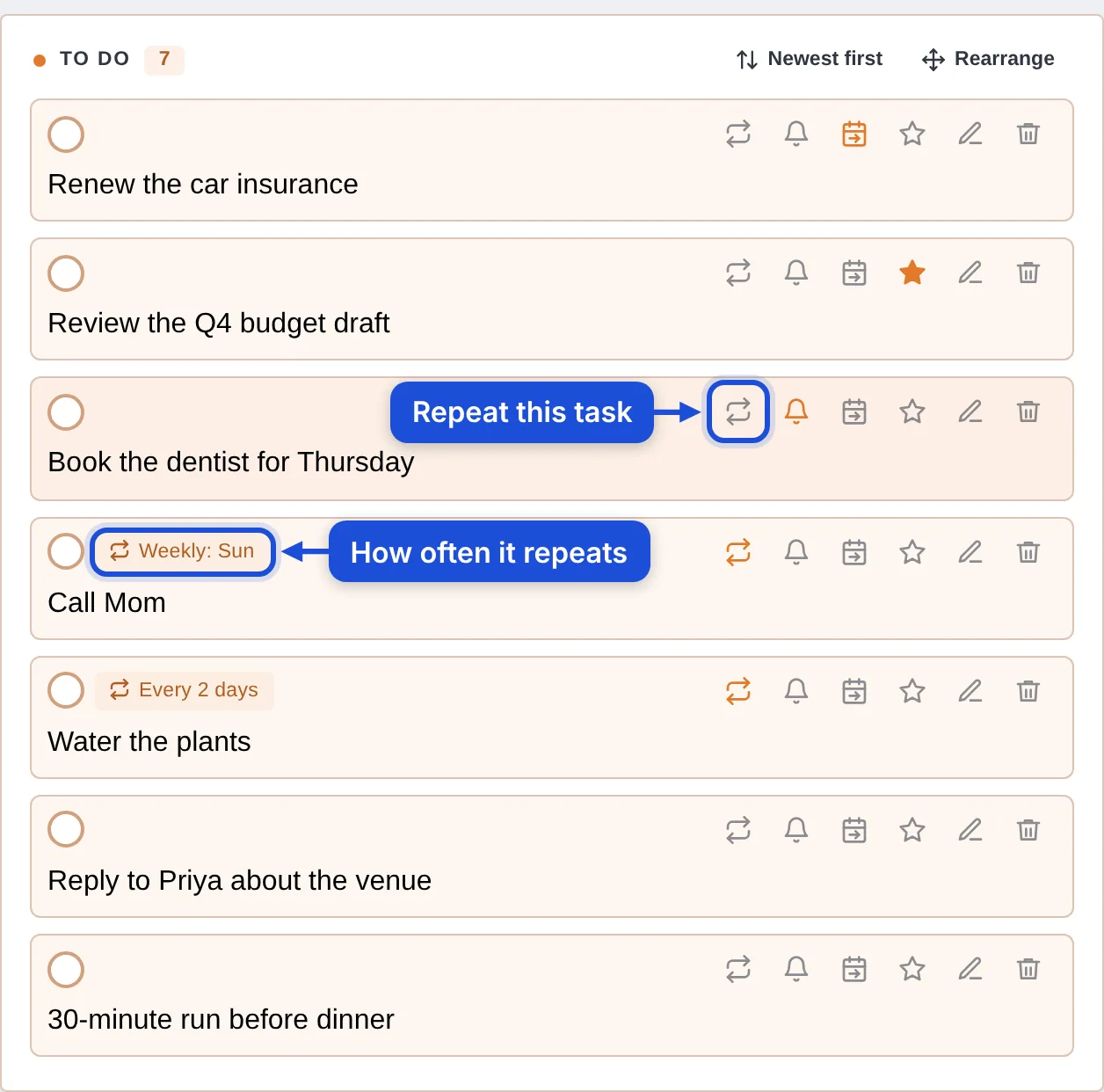
- Any task that is not done can be made to repeat with the repeat button (two arrows) among its icons.
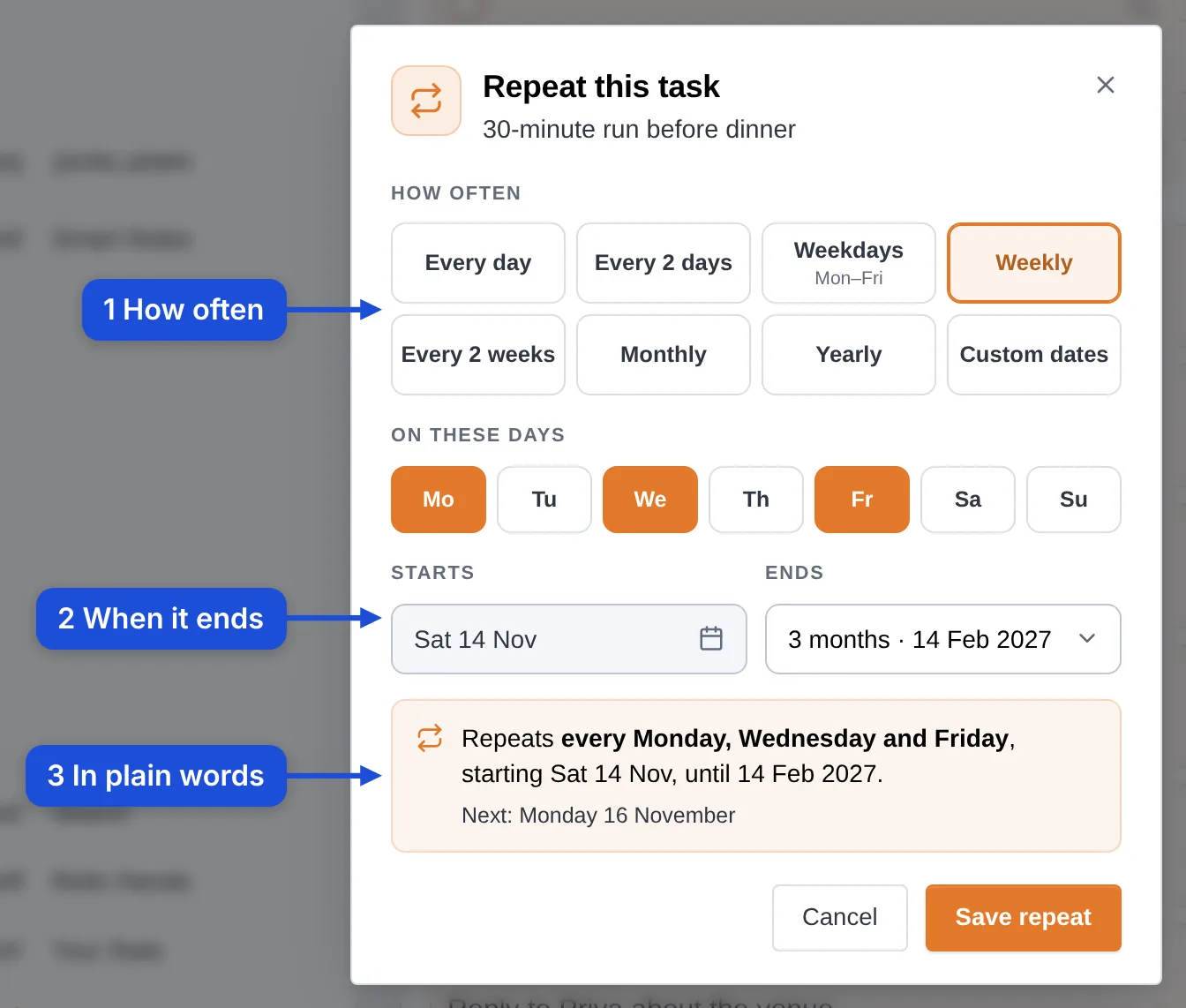
- How often: Every day, Every 2 days, Weekdays, Weekly, Every 2 weeks, Monthly, Yearly or Custom dates.
- Each day gets its own copy when that day arrives. Ticking one day does not touch the others.
- The free plan runs 5 repeating tasks at a time. Pro has no limit. Every way of repeating is on both plans.
- All your repeating tasks are listed under Account → Repeating Tasks.
Make a task repeat
- Add the task to the day it should start on, as usual.
- Press the repeat button, the two arrows at the start of the task's icons. On a computer the icons show when the pointer is on the row; on a phone, and in a narrow window, they always show.
- In Repeat this task, choose How often.
- Choose when it Ends. It starts on the task's own day.
- Read the sentence at the bottom: it says in plain words what will happen and when the next one is due.
- Press Save repeat.
How often
| Choice | The task comes back |
|---|---|
| Every day | Each day. |
| Every 2 days | Every second day, counted from its first day. |
| Weekdays | Monday to Friday. |
| Weekly | On the days of the week you pick, every week. |
| Every 2 weeks | On the days of the week you pick, every second week. |
| Monthly | On its day of the month. |
| Yearly | On its date each year. |
| Custom dates | On the dates of the month you pick, such as the 1st and the 15th, or "Last day of the month". |
When it ends
A repeat always has an end, so nothing runs for ever by accident. Choose from 1 week to 1 year ahead (up to 3 years for Monthly and 10 years for Yearly), or Pick a date…. When a repeat reaches its end it stops by itself. Open it and pick a new end to start it again.
Short months and leap years
- Monthly on the 29th, 30th or 31st comes on the last day of a shorter month.
- Yearly on 29 February comes on the 28th in other years.
- With Custom dates, a month that does not have a chosen date (the 31st in April) skips it.
The label on a repeating task
A repeating task carries a small label after its text, such as "Every day", "Weekly: Sun" or "Every 2 days". Point at it for the whole rule; press it, or the repeat button, to open the repeat window.
How the days fill in

- Each day's task is added when that day arrives: just after midnight in your time zone, or when you open RytePad that day. Nothing is made in advance.
- Coming days show what will repeat under "Repeating on this day", as dashed rows. They cannot be ticked yet; they become ordinary tasks on their day.
- In the calendar a faint ring marks a coming day that has only repeating tasks.
- A day you delete stays empty. It is not added again.
- Repeating tasks are not carried over to the next day (Carry over). Each day they are due gets its own.
- If you stay away from RytePad for two weeks, it stops adding repeats at midnight and starts again on the day you come back. The days in between stay empty.
Change a repeating task
Its text
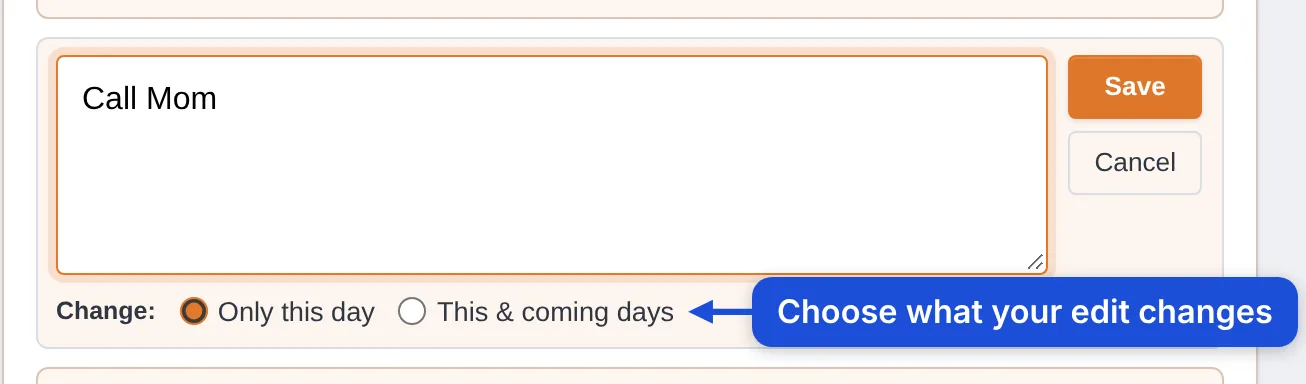
Press the pencil and choose Only this day or This & coming days. Days already in your list keep the text they have. A dashed row of a coming day has the same pencil and the same two choices.
How often, or its end
Press the repeat button (lit on a repeating task) or the label. The window shows the rule and how many of its days you have done. Change how often it comes or when it ends, then press Save changes. The change counts for the coming days.
Its star
A star on the newest day also stars the coming days. A star on an earlier day stays on that day.
Stop a repeat
Open the repeat window and press Stop repeating, then Yes, stop repeating. No more days are added. The days already in your list keep their tasks. A message with Undo follows.
Delete a repeating task
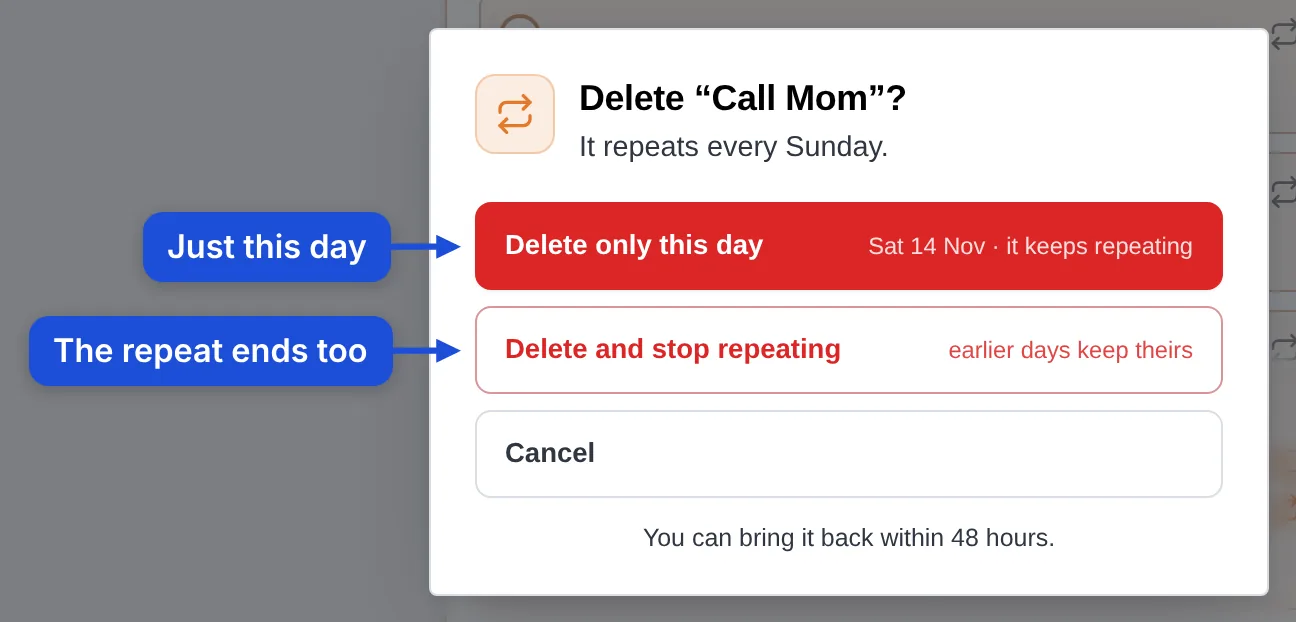
The bin on a repeating task asks which you mean:
- Delete only this day: that day's task goes, and the task keeps repeating.
- Delete and stop repeating: that day's task goes and the repeat ends. Earlier days keep their tasks.
Either way a message with Undo appears, and what you deleted waits in Account → Recently Deleted for 1 hour (48 hours on Pro).
A reminder every time it repeats
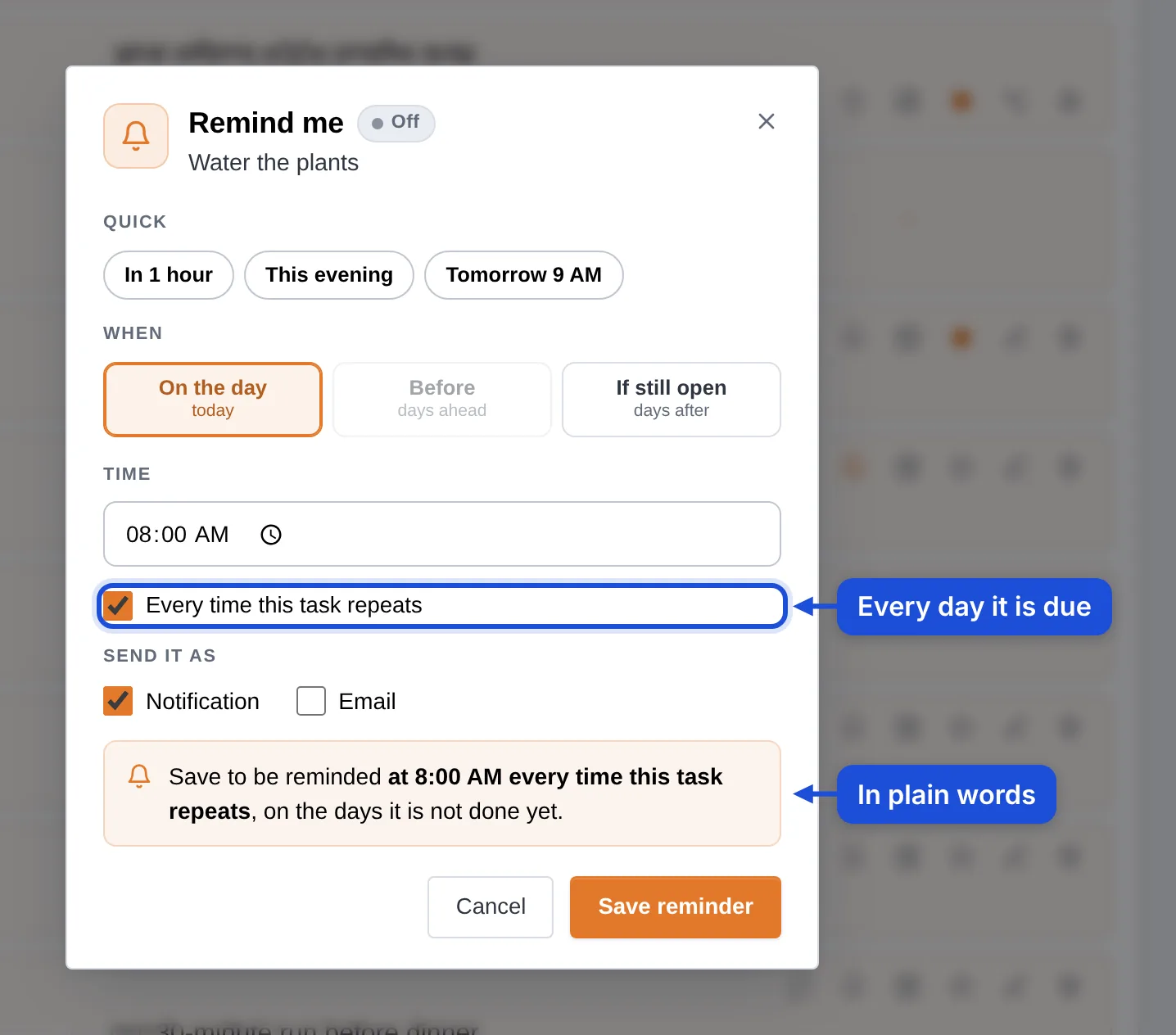
Press the bell on any day of a repeating task. The Remind me window has one more box: Every time this task repeats. Tick it, choose a time and how to get it (a notification, an email, or both), and save. You are then reminded at that time on every day the task is due and not done yet. A day you already ticked off sends nothing. Leave the box unticked for a reminder on that one day only. See Notifications and reminders.
Moving one day of a repeating task
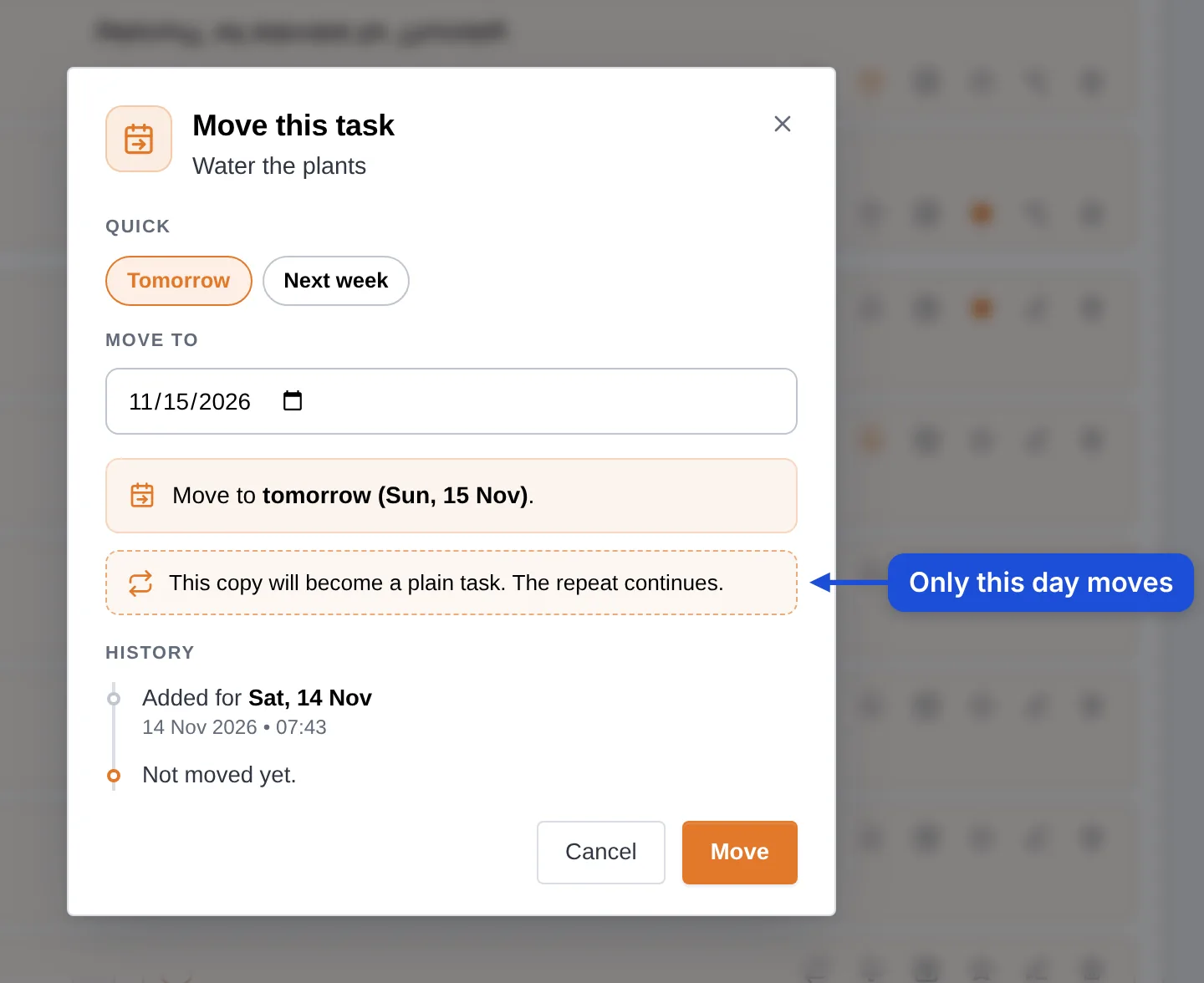
If one day's copy does not fit, move it to another day. The window tells you "This copy will become a plain task. The repeat continues." The moved copy is an ordinary task on its new day, the day it left stays without it, and the repeat goes on as before.
All your repeating tasks in one place

Account → Repeating Tasks lists every repeat: its text, how often it comes, since when, until when, and how many of its days are done. Change opens its repeat window. Stop ends it; the days already in your list keep their tasks.
Examples
Add the task on the day it should first happen, then press the repeat button and choose:
| You want | Add the task on | How often | Good to know |
|---|---|---|---|
| Pay the rent on the 1st | The 1st of the month | Monthly | Ends after 1 year unless you pick another end. |
| Water the plants every other day | The next watering day | Every 2 days | Counted from that first day. |
| Gym on Monday, Wednesday and Friday | The next gym day | Weekly, with Mo, We and Fr picked | To skip one day, move that day's copy. The repeat goes on. |
| A stand-up meeting every workday | A weekday | Weekdays | Monday to Friday, never at the weekend. |
| Two bills, on the 5th and the 20th | The next of those two dates | Custom dates: 5 and 20 | One task for both dates. |
| An invoice at the end of every month | The last day of this month | Custom dates: Last day of the month | Comes on the 28th, 29th, 30th or 31st, as the month has it. |
| Clean the fridge every other Saturday | The next cleaning Saturday | Every 2 weeks, with Sa picked | Every second week from that Saturday. |
| A friend's birthday | This year's birthday | Yearly | Ends after 10 years unless you pick another end. |
Rent on the 1st, with a reminder
- Open the 1st of next month in the calendar and add "Pay the rent".
- Press the repeat button, choose Monthly, keep Ends: 1 year or pick another end, and press Save repeat.
- Press the bell on the task, tick Every time this task repeats, choose 9:00 AM and press Save reminder.
On the 1st of every month the task is in your list, and at 9:00 AM a "Repeating task reminder" names it, unless you have already ticked it off.
Vitamins every morning
Add "Take vitamins" to today, make it repeat Every day, then press its bell, tick Every time this task repeats and choose 8:00 AM. A day you have already ticked off sends nothing.
Skip one day without breaking the repeat
The gym repeats on Monday, Wednesday and Friday, but this Monday is full. Press Move on Monday's copy and choose Tuesday. That copy becomes a plain task on Tuesday, and Wednesday and Friday come as usual.
Free and Pro
| Free | Pro | |
|---|---|---|
| Repeating tasks running at a time | 5 | Unlimited |
| Every way of repeating (daily to yearly, custom dates) | Yes | Yes |
| Reminder every time it repeats | Yes (counts as one of the 5 reminders) | Yes |
- On the free plan the repeat window counts down: "Free plan: 5 of 5 repeating tasks left." With five running it says "Free plan: all 5 repeating tasks are in use. Stop one to start another, or see Pro for no limit."
- Each day's copy is a task of that day, so it counts toward the free plan's 25 tasks a day.
- If Pro ends while more than 5 repeats are running, the 5 oldest keep running and the rest pause until Pro is back or one of the 5 ends. Nothing is deleted.
Questions and answers
Does ticking today's copy tick the other days?
No. Every day has its own copy. Today's tick is today's.
Why is tomorrow's repeating task a dashed row I cannot tick?
Because tomorrow's copy is made when tomorrow arrives. The dashed row shows what will be there.
I missed a day. Does the task pile up?
No. A repeating task is not carried over. Yesterday's copy stays on yesterday, not done, and today has its own.
Can a task repeat on the last day of every month?
Yes. Choose Custom dates and "Last day of the month", or Monthly on a task whose day is the 31st.
Can a task repeat for ever?
A repeat always has an end date, up to 1 year ahead (3 years for Monthly, 10 for Yearly). When it ends, open it and pick a new end.
How many repeating tasks can I have?
5 at a time on the free plan, with no limit on Pro. A repeat you stop makes room for another.
Where do I see everything that repeats?
Under Account → Repeating Tasks.
Try it in RytePad
Tasks, a private diary, goals, checklists and notes in one place. No card needed.