
Move a task to another day in RytePad, and carry over what is unfinished
A task in RytePad belongs to a day. When the day changes its mind, there are two ways to take a task along: Move, which you do yourself for one task, on every plan, and Carry over, which brings every unfinished task to the next day by itself, on Pro. This page explains both.
In short
- Move is the calendar-with-an-arrow icon on every task that is not done. Free and Pro.
- A task can be moved to any day, later or earlier. It keeps its text, its star and its reminder.
- Every move is written into the task's history, which the Move window shows.
- Carry over (Pro) copies tasks that are still not done to the next day at midnight, marked D2, D3 and so on up to D10.
- Move is for one task you decide about. Carry over is for everything you did not get to.
Move a task to another day

- In Daily Tasks, find a task that is not done. On a computer its icons show when the pointer is on the row; on a phone, and in a narrow window, they always show.
- Press Move, the calendar with an arrow, after the bell. Its tip reads "Move to another day".
- The window Move this task opens with the task's text. Press a quick day (Tomorrow or Next week), or choose any day in the Move to date box.
- The line under the box says what will happen, for example "Move to tomorrow (Sun, 15 Nov)."
- Press Move.

The window closes and a message confirms it: "Moved to tomorrow (Sun, 15 Nov). View". View opens that day with the task lit. The message stays about six seconds.

What moves with the task
- Its text and its star. It is the same task, on another day.
- Its place: it arrives where a new task arrives: at the top of the new day's list, or at the bottom with Oldest first.
- Its reminder, at the same time of day. The window says so before you move: "Its reminder goes with it: tomorrow (Sun, 15 Nov) at 6:00 PM."
- If that moment has already passed on the new day (a move into the past), the reminder is removed, and the window and the message say so.

The rules
- Any day: later or earlier. For a day that has passed, the line reads "Move to (day), a day that has passed."
- Not the same day: "The task is already on that day."
- Only tasks that are not done. Mark a done task "Not done" first if you need to move it. A done task that was moved keeps its icon in Completed, but only to show its history (see below).
- The free plan's 25 tasks a day hold for the day you move to. If that day is full, the window says "Free plan: 25 tasks on one day, and (day) is full. Choose another day, or see Pro for no limit." and the task stays where it was.
- Closing the window (Cancel, the X, Escape, or a click beside it) moves nothing.
A task's history

The Move window shows where the task has been: "Added for (day)" with the date and time it was written, then one line for every move, "Moved from (day) to (day)", the oldest first. A task that has never been moved says "Not moved yet."
- A task that was moved has a lit Move icon. Its tip reads "Moved from another day: see its history or move it again".
- The window lists the latest 20 moves and says how many earlier ones there were.
- The history stays with the task if you delete it and bring it back (Undo, or Account → Recently Deleted).
- Your moves are part of Export my data (Account → Your data).
A done task's history. In Completed, a task that was moved keeps its Move icon, grey like the star of a done task. A task that Carry over brought has it too, a little dimmer. Either opens "Task history": the same lines, ending with "Completed" and the date and time it was done. Nothing can be moved from there; its only button is Close.

Moving one day of a repeating task
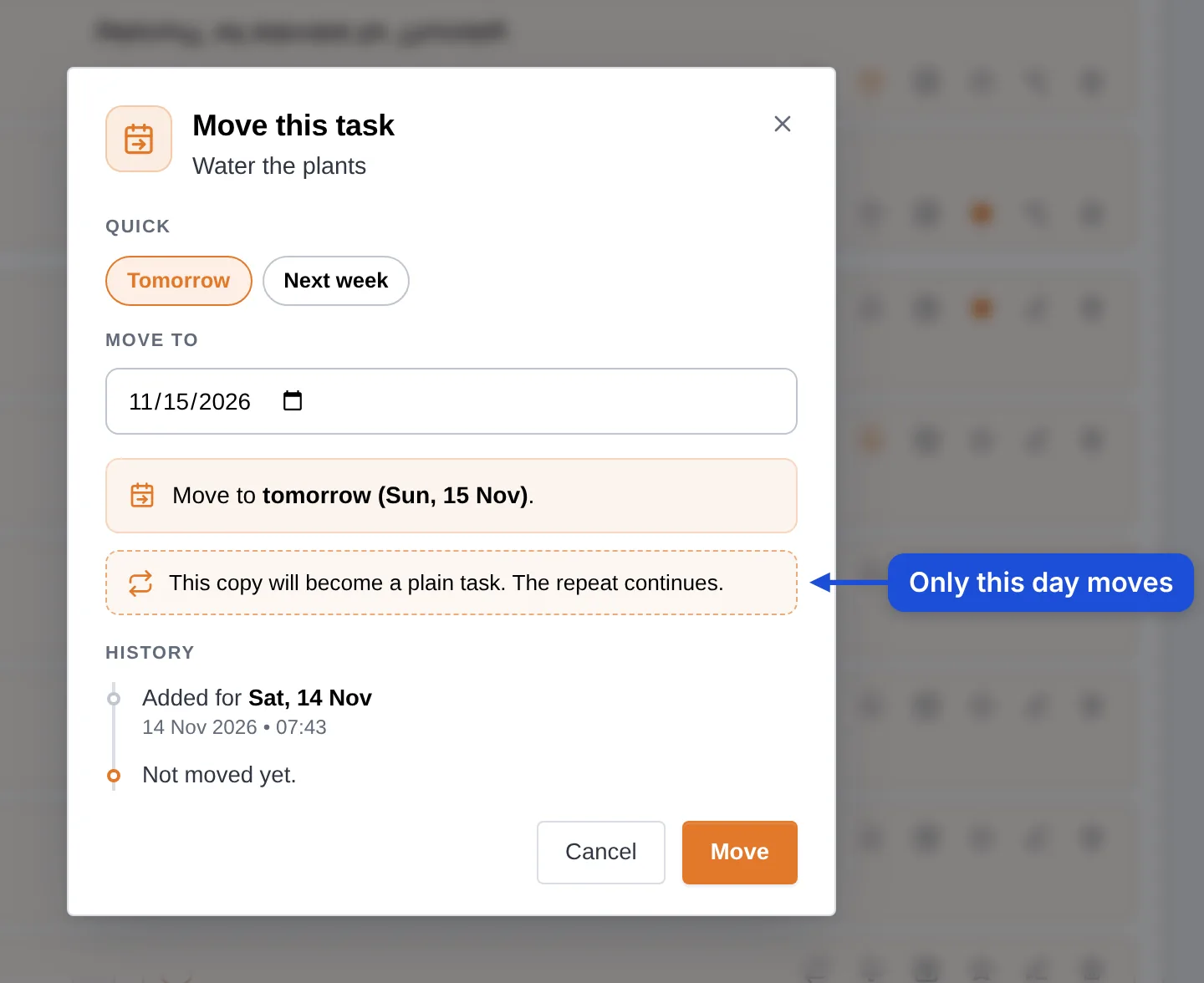
Each day of a repeating task is a copy of its own. If you move one, the window tells you: "This copy will become a plain task. The repeat continues."
- The moved copy loses its repeat label and is an ordinary task on the new day. Its history begins "A repeating task's copy for (day)".
- The day it left stays without it. The repeat does not make that day a second time.
- The repeat itself is untouched and goes on as before. If it also falls on the day you moved to, that day has both: the repeat's own copy and the task you moved.
Carry over unfinished tasks (Pro)
Carry over is for the tasks you did not get to. It is off until you switch it on.

- Open Account. In Security & preferences, tick Carry over tasks ("Unfinished tasks go to the next day just after midnight").
- Optional: tick Move them (remove them from the day they came from). Unticked, they are copied and stay on both days, so the old day keeps a record of what was planned.
What happens at midnight
- At midnight in your time zone, every task of the day that is still not done is copied to the next day.
- The copy starts with a marker that counts the days: D2|: on the second day, D3|: on the third, and so on. It shows at a glance what keeps slipping.
- Copying stops after D10. A task that has waited ten days stays on its day.
- The copies go under whatever the new day already holds, in their own order, and keep their star.
- Repeating tasks are never carried over. Each day they are due gets its own.
- Done tasks stay where they are.

The marker is part of the task's text. Edit the task to take it out once the task is where it belongs. A reminder or a notification shows the text as the list shows it, marker included.
Carry over in a task's history
A carried-over copy takes the task's history along and gets a line of its own: "Carried over automatically from (day) to (day)". Its Move icon is not lit by that: lit means the task was moved by hand at some time.
Move or Carry over: which one?
| Move | Carry over | |
|---|---|---|
| Plan | Free and Pro | Pro |
| Who does it | You, for one task | RytePad, for every unfinished task of the day |
| When | Any time | At midnight in your time zone |
| To which day | Any day, later or earlier | The next day |
| The task on its old day | Leaves it | Stays as well, unless you ticked "Move them" |
| Marker in the text | None | D2|: to D10|: |
| History | "Moved from … to …" | "Carried over automatically from … to …" |
| Repeating tasks | One day's copy can be moved; it becomes a plain task | Never carried over |
Examples
The meeting moved from Tuesday to Thursday
Press Move on Tuesday's task, choose Thursday in the Move to box and press Move. If the task has a reminder at 9:30 AM, the window says so first ("Its reminder goes with it"), and the reminder now comes on Thursday at 9:30 AM.
Not today after all
Press Move, then Tomorrow. The message "Moved to tomorrow" has View, which opens tomorrow with the task lit.
Back on the list a week later
Next week puts the task seven days from today, on today's weekday: pressed on a Saturday, it goes to the next Saturday.
Skip one gym day
The gym repeats on Monday, Wednesday and Friday. Move Monday's copy to Tuesday: it becomes a plain task on Tuesday, and the repeat brings Wednesday and Friday as usual.
Let unfinished tasks follow you (Pro)
With Carry over tasks on, "Call the plumber" planned for Monday and not done is copied to Tuesday as "D2|: Call the plumber", and to Wednesday as "D3|: Call the plumber". The number shows how long it has waited. Monday keeps its own copy as a record of what was planned, unless you ticked Move them.
Questions and answers
Is moving a task a Pro feature?
No. Move is on every plan. Carry over is the Pro feature.
Can I move a task to a day in the past?
Yes. The window says the day has passed, and a reminder whose time is over on that day is removed.
Can I move several tasks at once?
Move works on one task at a time. To bring everything unfinished to the next day in one go, use Carry over (Pro).
Can I move a task back?
Yes. Open Move again and choose the day. The quick days then include Today. Both moves are kept in the history.
What does the lit Move icon mean?
That the task was moved from another day by hand. Open it to see its history or to move it again.
What do D2|: and D3|: mean in front of a task?
That Carry over brought the task along: D2 is its second day, D3 its third. Carry over stops after D10.
What happens to Carry over when Pro ends?
It stops. Nothing is deleted: the tasks stay on the days they are on. Move keeps working.
Does a moved task count toward the free plan's daily limit?
Yes, on the day it is moved to. The free plan holds 25 tasks on one day.
Try it in RytePad
Tasks, a private diary, goals, checklists and notes in one place. No card needed.