
Learn how to use Daily Tasks, Diary, Goals, Task Lists, and Notes
This comprehensive guide will help you navigate and make the most of RytePad’s features, designed to boost productivity and support personal reflection.
Quick Links:
RytePad is an all-in-one productivity web app that helps you stay organized and mindful every day.
It brings together a smart task manager for to-dos, a flexible journal for your thoughts, goal trackers for monthly or long-term plans, project specific checklists, and a quick notepad—everything in one simple, intuitive space.
RytePad syncs seamlessly and works across all your devices.
RytePad is completely free to get started. Create your account in under a minute and start using it right away.
To begin using RytePad:
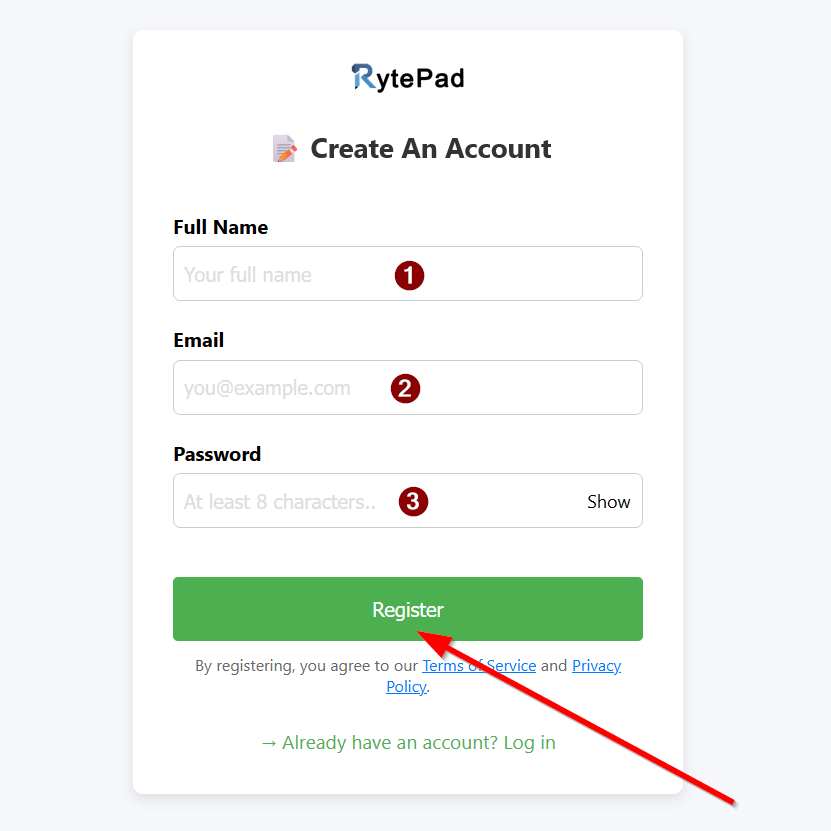
Go to the RytePad Login page.
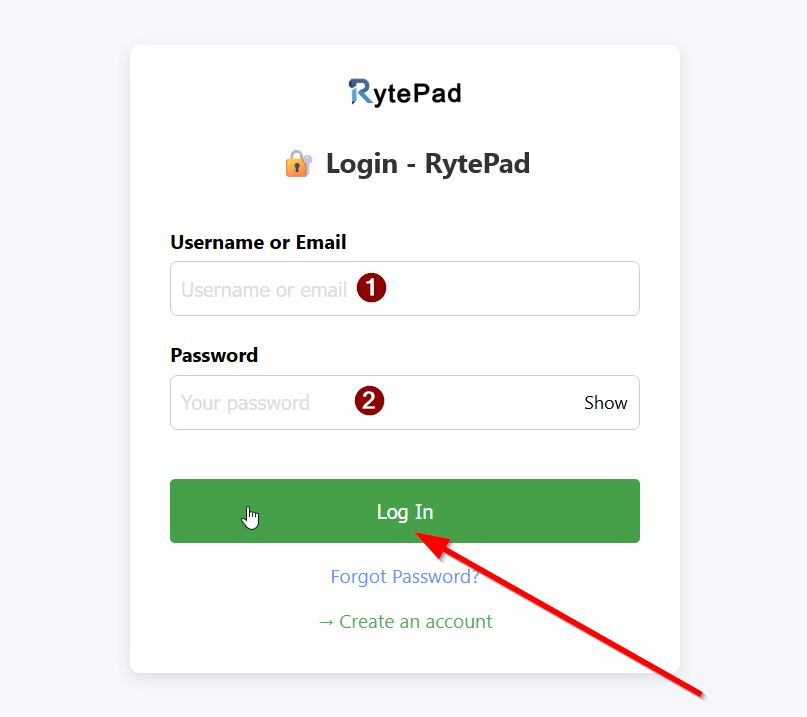
Enter your registered email address or your username(auto generated during registration).
Enter your password and click Login.
You’ll be signed in and remain logged in on that device for up to 40 days thanks to cookies.
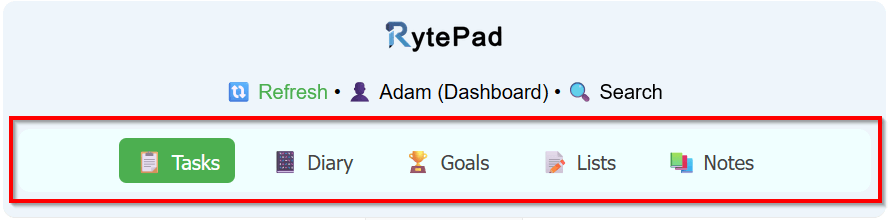
Top Navigation
Bottom Navigation
Click a tab to switch sections.
The “Tasks” section in RytePad (under the “Tasks” tab) is your go-to for managing daily to-dos.
It’s date-based, so tasks are tied to specific days, with sections for Pending and Completed items.
Add, edit, complete, or delete tasks with ease.
Free users can create unlimited tasks and track progress with sound effects and calendar dots.
Upgrade to Pro for advanced features like automatically carrying over unfinished tasks to the next day & more.
Log in to RytePad and open the dashboard.
In the bottom navigation, click the 📋 Tasks tab (first icon, labeled “Tasks”).
Tip: Use “Refresh” (🔃) in the header to reload.
In the “Add A Task” input, type your to-do (e.g., “Water plants” or “Call doctor”—up to 500 characters max per each task).
Click Add Task.
Example: Add “Buy groceries”—it shows up ready to manage. No limits—add as many as needed!
In Pending Tasks or Completed sections:
Tip: Hover over any pending or completed task to view its timestamp.
Pending tasks show the date and time they were added.
Completed tasks display both the added and completion date and time.
Use arrows (‹ ›) for prev/next day, or click the date to open the calendar.
Pick a date—tasks load automatically.
Example: Go to tomorrow to plan ahead, or last week to review. No future limits—pre-plan freely!
This feature automatically carries over any pending tasks to the next day at midnight (00:00).
Copied tasks will have a prefix to show how many days they’ve been carried forward.
Example: If your task was “Call an Old Friend” and it wasn’t completed, the next day it will appear as “D1|: Call an Old Friend.”
On the following day, if still incomplete, it becomes “D2|: Call an Old Friend.”
Tasks will continue copying daily until you mark them complete, or until they reach Day 10 (D10). After that, they will no longer be copied automatically.
Enabling / Disabling:
In your Dashboard (click your name in header), find “Auto Copy Tasks Next Day.”
Check the box to enable.
Click 🔍 Search (top menu).
In “Search Tasks” sub-tab, add text (e.g., “groceries”) and/or dates (start/end).
Click Search.
Tip: No input? Simply select a start date or an end date to show all the tasks(pending or completed) for the selected dates.
Daily Pending Tasks Reminders:
Daily Upcoming Task Reminders
The “Diary” section in RytePad (found under the “Diary” tab) is your personal journal for daily reflections, thoughts, or events.
Add timestamped entries with rich formatting (bold, lists, colors), and Pro users get an extra “Diary Note” for summaries.
Entries are dated, searchable, and editable. Free users have unlimited entries.
Log in to RytePad and open the dashboard.
In the bottom navigation, click the 📔 Diary tab (second icon, labeled “Diary”).
Tip: Use arrow buttons (‹ ›) to switch days quickly.
In the editable box at the bottom (“Write a new entry…”), type your thoughts (supports formatting—see Step 3).
Click Add Entry.
Example: Write “Had a great meeting today!” and add—it shows with the current time and timezone.
While typing in the “Write a new entry…” box:
Tip: Paste text (Ctrl+V)—it keeps plain but you can reformat. Tab for indents in lists. Char count shows (turns red over 20,000).
In the “Diary Entries” section:
Tip: Entries sort by addition time. Hover icons for tooltips. Multiple entries per day are fine!
Click the + button next to “Diary Note” to expand (if collapsed).
Type your daily reflection in the textarea (plain text, up to 20,000 chars).
Changes auto-save after 10 seconds, or click Save Note.
Example: Summarize your day: “Productive but tiring—need more rest.” It saves with the date.
Use the date picker or arrows (‹ ›) to change days.
Entries and notes load for that date.
Tip: “Today/Yesterday/Tomorrow” labels show relative to now. Go back months/years easily.
Go to the 🔍 Search tab.
Switch to “Search Diary” sub-tab.
Enter text and/or dates (start/end).
Click Search (for entries) or Search Diary Notes (Pro, for notes).
Tip: No input? Provide a term or dates. Great for reviewing patterns!
The “Goals” section in RytePad (found under the “Goals” tab) helps you set, track, and achieve your objectives.
It has two sub-tabs: Long Goals for big-picture or ongoing targets (like “Save $5k”) and Monthly Goals for time-bound ones (like “Read 2 books this month”—a Pro feature).
Free users get unlimited long goals, but monthly goals require Pro. Goals can be marked complete, restored, or deleted.
Log in to RytePad and go to your dashboard.
In the bottom navigation, click the 🏆 Goals tab (third icon, labeled “Goals”).
Stay on the Long Goals sub-tab (it’s active by default).
In the “Add a Goal” input field, type your goal (e.g., “Learn Spanish” or “Run a marathon”—up to 500 characters max per goal).
Click Add Goal.
Example: Enter “Travel to Europe” and click “Add Goal.” It’s now trackable.
In the Pending or Completed sections, interact with goals:
Tip: Completed goals sort by completion date (newest first). Hover goal entries to view timestamps.
Click the Monthly Goals sub-tab.
Select a period:
The section updates to show goals for that month/year.
Example: Pick “2025” and “October” to plan ahead.
In the “Add a Monthly Goal” input, type your goal (e.g., “Exercise 20 days”—up to 500 characters).
Click Add Goal.
Example: For September, add “Finish online course.” Switch to October for “Plan vacation.”
Similar to long goals:
Tip: Use monthly goals for short-term wins tied to calendars. No cross-period copying—add fresh each time.
The “Lists” section in RytePad (found under the “Lists” tab) is a versatile tool for creating and managing custom task lists, such as grocery lists, project checklists, or to-do items for specific events.
It’s separate from your daily tasks and allows you to organize items into reusable, editable collections.
Log in to your RytePad account and go to the main dashboard.
Click the 📝 Lists tab (it’s the fourth icon, labeled “Lists”).
Keep it under 32 characters—no semicolons (;) or line breaks allowed.
Click the Add List button next to the input field.
Example: Type “Weekly Goals” and click “Add List.” Now it’s ready to select!
In BOX 2 (“Search & Select Lists…”), the newly added List title pops out automatically. You can also start typing the name of your list (or part of it) to search.
Click on a list name from the dropdown to select it.
Tip: Use the “Clear Selection” button to close the current list and go back to the overview. Hover over list names for quick selection.
With a list selected, go to the “Add a Task to this List” input field.
Type your task (e.g., “Buy milk” or “Call plumber”—up to 500 characters).
Click Add Task.
Example: For a “Grocery List,” add “Apples,” “Bread,” and “Cheese.” They’ll show up under Pending.
Once tasks are added, you can interact with them in the Pending or Completed sections.
Tip: Completed tasks are sorted by completion time (newest first).
Rename:
Delete:
Warning: Be careful—deleted lists can’t be recovered!
Switch to the 🔍 Search tab (top navigation).
Go to the “Search Lists” sub-tab.
Enter a search term (e.g., “milk”) in the input field.
Click Search.
Tip: No date filters here—it’s text-based search across all lists.
The “Notes” section in RytePad (found under the “Notes” tab) is a powerful, flexible notepad for jotting down ideas, recipes, thoughts, or any text-based content.
It’s like a digital notebook where each note has a title and supports rich formatting (bold, italics, lists, colors, etc.).
Free users can create and share up to 20 notes, while Pro users have unlimited access. Notes can also be shared via links (snapshot or live updates).
Log in to your RytePad account and head to the main dashboard.
In the bottom navigation bar, click the 📚 Notes tab (it’s the fifth icon, labeled “Notes”).
In BOX 1 (“Create a Note Title“), enter a short title (e.g., “Chocolate Cake Recipe” or “Meeting Ideas”).
Click Add Note.
Example: Type “Travel Bucket List” and click “Add Note” It’s now ready to select and edit!
In BOX 2 (“Search & Select Notes…“), the newly added note title pops out automatically. You can also type part of a note title to search (or click in to see all).
Click a note title from the dropdown.
Tip: Use “Clear Selection” to close and return to overview. Hover on titles for quick picks.
With a note selected, click into the editor box (below the title).
Type or paste your content. Use the toolbar at the top for formatting:
Changes auto-save every 10 seconds, or click Save Content manually.
Example: For a recipe note, bold the title, use a bulleted list for ingredients, and add a green checkmark emoji (✅) for steps.
At the bottom of the open note, click Share.
Choose:
Click the option of your choice:
Tip: Snapshots are great for one-time shares; live links for ongoing updates. Free users can create, share up to their 20-note limit.
Rename:
Delete:
Warning: Deleting removes the note and breaks any shared links!
Go to the 🔍 Search tab.
Switch to the “Search Notes” sub-tab.
Enter a search term (e.g., “chocolate”) in the input.
Click Search.
Tip: No date filters—it’s text-based across all notes.
The Countdown Timer is a great feature that helps you stay focused with custom timer settings.
In Desktops, the timer widget is available at the bottom right corner of the screen.
In smaller screen devices you’ll have to access the Countdown Timer from your Dashboard.
Open the timer
Set a timer
25 for a Pomodoro) and click “Set Timer”.While the timer runs
The widget label changes to “Stop” and the running timer appears in the top-right corner of the screen.
When the timer finishes
You’ll hear a beep (repeats for 1 minute) and a popup will appear telling you the timer has finished.
The popup gives two options:
Stop — stops the alarm and ends the session.
Set Again — start a new timer immediately.
Stopping the timer
If you click the “Stop” widget while the timer is running, the timer stops, the top-right timer disappears, and the widget returns to “Set Timer”.
Limits
Free users: 5 timer credits per day.
Pro users: unlimited timer credits.
Tip
Use the timer for focus sessions (Pomodoro, deep work, etc.). The Reset button lets you restart the current countdown if needed.
The “User Dashboard” in RytePad (accessed by clicking your name in the header) is your personal hub for account management, stats, and referrals.
View membership details, change username/password/full name, manage preferences (like timers or auto-copy), and track referrals.
Free users get basic access; Pro users unlock extras like timers and auto-copy. It has two sub-tabs: User Details (default) and Refer Friends.
In the top header, click your name (e.g., “👤 John (Dashboard)“).
Under “Membership,” see your plan (e.g., “Free” or “Pro“).
Click Details to expand: You will see:
Close with the “Close” button.
Example: Pro users see “Pro” with dates—great for renewal reminders.
Next to “Username,” click Change (if changes remain—up to 2 total).
Enter a new username (1-20 chars: letters, numbers, underscores).
Click Submit (or “Cancel”).
Tip: Choose wisely—usernames are unique. Errors? Check format or availability.
Next to “Full Name,” click Change.
Enter your new full name (up to 40 chars: letters, spaces, apostrophes, hyphens and dots).
Click Save (or “Cancel”).
Tip: Use for personalization—header shows first name (e.g., “👤 Alex” instead of username).
Tip: Strong passwords only—no special chars beyond basics. Forgot old? Use reset link on login.
Tip: Changes save instantly. Unsubscribe anytime—great for motivation.
Tip: Stats motivate—track growth over time!
Note: Rewards inactive now, but track invites. Share on socials!
Our team is always ready to assist you:
 Email Support – Send us a detailed message about your issue at: [email protected]
 Website Contact – Use the contact form on our main website: Visit Contact Us Page
Response time: 12-48 hours.